Signature
- Java API: org.zkoss.zkmax.zul.Signature
- JavaScript API: zkmax.signature.Signature
since 8.6.0
Employment/Purpose
Signature components support signature pad on the desktop and mobile browsers. User can customize pen size, pen color, background color etc., it also provides undo, save and clear methods.
Common Use Cases
- Collecting a user’s handwritten signature on documents, contracts, or consent forms directly in the browser, on both desktop and mobile.
- Annotating a scanned paper form by loading a background image of the form and overlaying a handwritten signature or initials.
- Signature-as-image capture in order-processing, delivery-confirmation, or legal-acknowledgement workflows where the saved PNG/JPEG is stored server-side and attached to a record.
Example

<signature width="600px" height="300px" penColor="white" backgroundColor="#AED6F1" penSize="6"/>
Buttons
There are 3 buttons when you hover on this component: (from left to right)
- undo: to remove the last step that was drawn on the signature pad.
- save: to save the signature image to the server, a user can get the image by listening onSave event.
- clear: to clear signature pad.
Properties
penSize
Default Value: 1
Sets the width of a line drawn on the signature pad. A larger value produces a thicker stroke.
<signature penSize="3"/>
penColor
Default Value: black
Sets the pen color of the signature pad. Accepts any color format accepted by the HTML Canvas context.fillStyle, such as named colors, hex codes, or rgba(...) values.
<signature penColor="#2C3E50"/>
backgroundColor
Default Value: white
Sets the background color of the signature pad. Accepts any color format accepted by the HTML Canvas context.fillStyle.
<signature backgroundColor="#AED6F1"/>
backgroundImage
Default Value: null
since 9.6.0
Sets the background image URI for the signature pad. Accepts any image format accepted by the HTML Canvas context.drawImage. When set, the background image is rendered on top of the background color.
<signature backgroundImage="/img/form-template.png"/>
backgroundIncluded
Default Value: true
since 9.6.0
Controls whether the background color and background image are composited into the saved signature image. Set to false to save only the drawn strokes on a transparent background.
<signature backgroundIncluded="false"/>
toolbarVisible
Default Value: true
Controls whether the toolbar (undo, save, and clear buttons) is visible. When set to false, the toolbar is hidden and users must trigger save/clear/undo programmatically.
<signature toolbarVisible="false"/>
saveType
Default Value: image/png
Sets the MIME type used when saving the signature image. The value is passed to the browser Canvas toDataURL() API. Commonly supported values are image/png and image/jpeg. If an invalid or unrecognized type is specified, the browser falls back to image/png.
| Value | Meaning |
|---|---|
image/png |
Save as PNG (default; lossless, supports transparency) |
image/jpeg |
Save as JPEG (lossy, smaller file size, no transparency) |
<signature saveType="image/jpeg"/>
undoLabel
Default Value: null
Sets the text label displayed after the icon on the undo button. When null (default), only the icon is shown.
<signature undoLabel="Undo"/>
saveLabel
Default Value: null
Sets the text label displayed after the icon on the save button. When null (default), only the icon is shown.
<signature saveLabel="Save"/>
clearLabel
Default Value: null
Sets the text label displayed after the icon on the clear button. When null (default), only the icon is shown.
<signature clearLabel="Clear"/>
Toolbar Customization
The toolbar buttons only contain icons by default. If you want to show
message after icons on the buttons, we provide three attributes:
undoLabel, clearLabel, and saveLabel.
Default:

Customized:

<signature undoLabel="Undo" clearLabel="Clear" saveLabel="Save"/>
Scanned Paper Form
You can load a scanned paper form as a background and save it with a
signature. 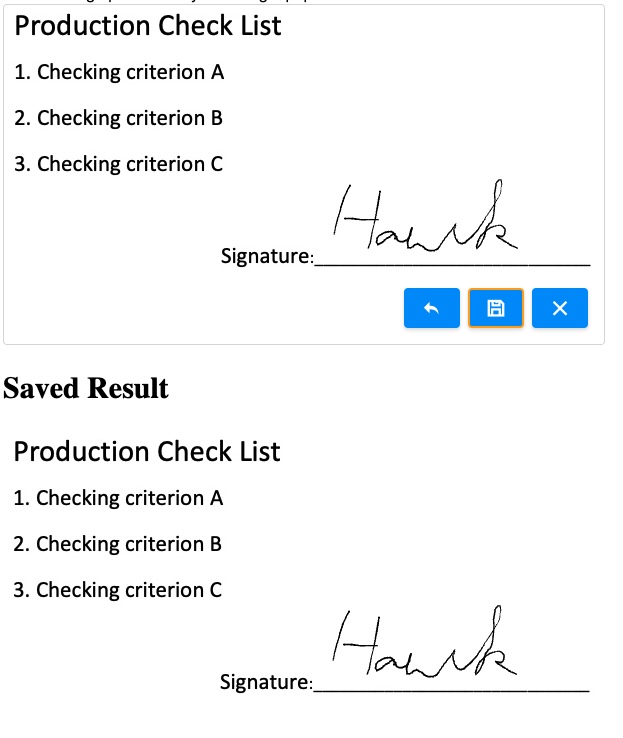
Saves Signature Image
After clicking “Save” button, the component will upload the signature to
a server. You can listen onSave to get the uploaded signature and show
it with
Image:
    <signature onSave="image.setContent(event.getMedia())"/>
    <image id="image"/>
File Size Limit
If you see SizeLimitExceededException, you can adjust max uploading
file size by file-size-threshold.
Supported Events
| Name | Event Type | Description |
|---|---|---|
| onSave | org.zkoss.zk.ui.event.UploadEvent | When user invoke the save method, the event would be triggered. |
| onClear | org.zkoss.zk.ui.event.Event | When user invoke the clear method, the event would be triggered. |
Supported Children
None. The <signature> component does not accept child components.