Dropupload
- Java API: org.zkoss.zkmax.zul.Dropupload
- JavaScript API: zkmax.wgt.Dropupload
Employment/Purpose
Dropupload leverages HTML 5 technology to handle file uploading where
users can simply drag and drop the file(s) they want to upload into
Dropupload and the uploading process will start automatically. The
behaviour and operation of this Dropupload component is similar to
ZK’s file upload button
but with better user experience and performance.
Common Use Cases
- Image upload with preview — use
detection="browser"so the drop zone only appears when the user drags a file into the browser, then handleonUploadto display the receivedMediaas an<image>component. - Bulk document upload — set
maxFileCountto a reasonable limit and listen toonMaxFileCountExceedto inform the user when they exceed it. - Strict file-type enforcement — combine
accept="image/*, application/pdf"with a server-side MIME check in theonUploadhandler. - Anchored drop zone — use
anchorto overlay an existing panel (e.g. a<tabpanels>) so the entire panel becomes a drop target, mimicking the Gmail attachment-drop pattern. - Raw binary processing — set
native="true"to receive the file as an untypedMediaobject and process the bytes yourself rather than relying on ZK’s automatic image/audio/text conversion.
Example
Following is a typical example of its implementation, it will always show component and limit the upload file size.
    <dropupload maxsize="5120" detection="none" onUpload="doSomething(event)">
        <attribute name="content"><![CDATA[
            <b>Drop Here</b><br/>
            size < 5MB
        ]]></attribute>
    </dropupload>
Another example, it will detect the drag action:
<zk>
    <vlayout>
        <image id="img" />
        Upload your hot shot:
        <dropupload maxsize="-1" content="content" detection="browser" onUpload="img.setContent(event.media)" />
    </vlayout>
</zk>
Drop area 
File dragged over area 
Image uploaded and displayed

Properties
Accept
since 10.0.0
Specifies the MIME types the server accepts. Multiple types can be separated by commas. If one of the dropped files does not match the acceptable types, nothing is uploaded.
<dropupload accept="audio/*, .png"/>
Anchor
Attaches the Dropupload component to another component so that it overlays that component when the user drags and drops files into the browser — similar to the Gmail attachment-drop behaviour. Set the value to a ZUL EL expression that resolves to the target component.


<zk>
    <div height="100px"></div>
    <tabbox height="100px">
        <tabs>
            <tab id="A" label="Tab A" />
            <tab id="B" label="Tab B" />
        </tabs>
        <tabpanels id="tps">
            <tabpanel>This is panel A</tabpanel>
            <tabpanel>This is panel B</tabpanel>
        </tabpanels>
    </tabbox>
    <dropupload anchor="${tps}"></dropupload>
</zk>
Content
Sets the HTML content displayed inside the Dropupload area. The value can be any HTML string; wrap it in a CDATA block to avoid XML escaping issues.
<dropupload detection="none">
<attribute name="content"><![CDATA[
<b>Drop Here</b><br/>size < 5 MB
]]></attribute>
</dropupload>
Detection
Default Value: browser
Controls when the Dropupload component and its content are visible relative to the user’s drag action.
| Value | Meaning |
|---|---|
none |
Always visible — ignores the user’s drag action. |
browser (default) |
Hidden initially; appears when the user drags files into the browser window. |
self |
Visible initially; content appears when the user drags files over the component itself. |
<componentId> |
Like self, but the trigger area is the component with the given id. |
Note: A Dropupload with detection="browser" cannot coexist on the same page with another Dropupload that uses a different detection value.
<dropupload detection="none" content="Drop files here" onUpload="doUpload(event)"/>
MaxFileCount
Default Value: -1
since 8.5.2
Sets the maximum number of files a user can upload in a single drop. -1 means no limit. When the number of dropped files exceeds this limit, nothing is uploaded and the onMaxFileCountExceed event fires; call event.getData() to retrieve the attempted file count.
<dropupload maxFileCount="3" onMaxFileCountExceed="@command('tooManyFiles', count=event.data)"/>
Maxsize
Limits the size of each individual uploaded file, in kilobytes. If any single file exceeds this limit, the entire upload is cancelled. A negative value (e.g. -1) means unlimited; when not set, the value from Configuration.getMaxUploadSize() is used.
<dropupload maxsize="5120" detection="none" onUpload="doUpload(event)"/>
Native
When true, ZK does not attempt to convert the uploaded binary into a typed Media object (image, audio, text). Use this when you need to handle the raw bytes yourself.
<dropupload native="true" onUpload="handleRaw(event)"/>
SuppressedErrors
since 9.5.1
Default Value: null
Specifies upload error types that should be silently suppressed (no error message shown to the user). Provide one or more pipe-separated (|) error-code strings drawn from org.zkoss.zk.ui.ext.Uploadable.Error:
| Value | Meaning |
|---|---|
missing-required-component |
Missing required component or data. |
illegal-upload |
Illegal upload method. |
server-out-of-service |
Server temporarily out of service. |
size-limit-exceeded |
Upload file size exceeds the configured max-size. |
server-exception |
Other server exceptions handled by handleError(ex). |
<dropupload suppressedErrors="size-limit-exceeded|server-out-of-service"
            detection="none" onUpload="doUpload(event)"/>
ViewerClass
Sets the fully-qualified JavaScript class name of a custom file-viewer that handles upload progress display. When not specified, ZK’s built-in pop-up progress bar is used. See the Customized File Viewer section for the required interface ($init, update, destroy).
<dropupload viewerClass="foo.MyFileViewer" content="custom viewer" detection="none"/>
Supported Events
| Name | Event Type | Description |
|---|---|---|
onUpload |
org.zkoss.zk.ui.event.UploadEvent | This event fires once a user has uploaded a file. |
onMaxFileCountExceed |
org.zkoss.zk.ui.event.Event | This event fires when the number of upload files exceeds the maxFileCount. |
- Inherited Supported Events: XulElement
Customized File Viewer
Similar to file upload button, the default file viewer will show the uploading progress via a pop-up bar as illustrated below.
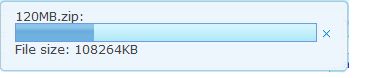
Alternatively, developers can also design customized File Viewer by implementing a JavaScript class to handle the display screen when uploading files. Below is an example of a customized file viewer where the progress bar is shown at the bottom of the browser.

foo.MyFileViewer = zk.$extends(zk.Object, {
    updated: null,
    $init: function (uplder,  file) {
        this._uplder = uplder;
        var id = uplder.id,
            uri = zk.ajaxURI('/web/zk/img/progress2.gif', {au:true}),
            html = '<div id="' + id + '" class="viewer"><image class="float-left" src="' + uri + '"/>'
            + '<div class="float-left">FileName: ' + file.name
            + ' <a id="' + id + '-cancel">Cancel</a></div><div class="float-right">'
            + msgzk.FILE_SIZE + ': <span id="' + id + '-sent">0</span> of '
            + '<span id="' + id + '-total">0</span></div><div class="clear"></div></div>';

        jq(uplder.getWidget().getPage()).append(html);

        this.viewer = jq('#'+ id)[0];
        jq('#' + id + '-cancel').click(function() {
            uplder.cancel();
        });
    },
    update: function (sent, total) {
        jq('#'+ this._uplder.id + '-sent').html(Math.round(sent/1000) + msgzk.KBYTES);
        if (!this.updated) {
            this.updated = true;
            jq('#'+ this._uplder.id + '-total').html(Math.round(total/1024)+msgzk.KBYTES);
        }
    },
    destroy: function () {
        jq(this.viewer).remove();
    }
});
In the code snippet above, you can see that there are three functions - $init, update, and destroy.
- $init(uplder, file): When the user selects a file from the file
chooser, this function will be invoked.
- uplder: An uploader object
- file: The file user uploads. It is a File object.
- update(send, total): After the uploading engine receives the
size that has already been uploaded, this function will be invoked.
- sent: An integer of the uploaded size.
- total: An integer of the total uploaded size.
- destroy(): After the file has been uploaded or if the uploading has been canceled or if the uploading has caused an error, this function will be invoked.
After customizing your JavaScript class which in this case is
foo.MyFileViewer, assign it to Dropupload using the viewerClass
attribute as demonstrated below:
<dropupload viewerClass="foo.MyFileViewer" content="custom viewer" detection="none" />
Uploader
Below is a summarised description table of the Uploader when passed a selected file from the user.
| Method | Usage |
|---|---|
| getWidget | Indicate which component the widget belongs to |
| cancel | Stops the uploading process. |
Transforming the original File Viewer
Customized File Viewers written in the past can also be applied to
Dropupload with only some slight changes :
- Originally, the second parameter of
$init()isfilenm(type: String). To apply it to the newDropuploadcomponent, change the second parameter tofile(type: File) object and add another line offilenm = file.nameto solve the issue.
//before
$init: function (uplder,  filenm) {
    //routine
}

//after
$init: function (uplder, file) {
    var filenm = file.name;
    //routine
}
- The first parameter of
update(),sendwould originally pass an integer value ranging from 0 to 100, representing the percentage of the uploading process whereas now it will pass the value of the already uploaded size of data in Bytes.
Event For Completed Uploads
After the upload is finished, the uploaded files can be retrieved from the companion event, which is an instance of org.zkoss.zk.ui.event.UploadEvent. For example,
<zscript><![CDATA[
public void showFileName(org.zkoss.zk.ui.event.UploadEvent event){
    org.zkoss.util.media.Media[] medias = event.getMedias();
    StringBuffer sb = new StringBuffer();
    for (org.zkoss.util.media.Media m : medias) {
        sb.append(m.getName()+"\n");
    }
    Messagebox.show(sb.toString());
}
]]></zscript>
<dropupload detection="none" onUpload="showFileName(event)" />
Customize Upload Size Exceeding Message
Please refer to Customize Upload Size Exceeding Message.
Browser Support
As Dropupload leverages HTML5 technology, some browsers don’t support
it. Currently, it works normally on Firefox (v.13+), Chrome (v.19+) and
Safari (v.5.1+), but doesn’t function in IE 9, Opera v.11.x, and
Microsoft Edge.
Moreover, the detection setting cannot be displayed on some older
machines.
Supported Molds
Supported Children
*NONE