Portalchildren
- Demonstration: Portallayout
- Java API: org.zkoss.zkmax.zul.Portalchildren
- JavaScript API: zkmax.layout.Portalchildren
Employment/Purpose
The column of Portallayout
Child of Portalchildren can only be Panel
Common Use Cases
Multi-Column Portal Layout
Use multiple <portalchildren> elements inside a <portallayout> to create a responsive multi-column dashboard. Each column receives a width that partitions the available space. Users can drag <panel> components between columns at runtime.
<portallayout>
    <portalchildren width="50%">
        <panel height="200px" title="Column A - Panel 1" border="normal">
            <panelchildren>Content A1</panelchildren>
        </panel>
        <panel height="200px" title="Column A - Panel 2" border="normal">
            <panelchildren>Content A2</panelchildren>
        </panel>
    </portalchildren>
    <portalchildren width="50%">
        <panel height="200px" title="Column B - Panel 1" border="normal">
            <panelchildren>Content B1</panelchildren>
        </panel>
    </portalchildren>
</portallayout>
Kanban Board Layout
Set the title attribute on each <portalchildren> to enable the frame design, turning the column into a named stage of a Kanban board. The optional counterVisible attribute controls whether the panel-count badge is displayed next to the title.
<portallayout>
    <portalchildren title="TO-DO" counterVisible="true">
        <panel title="Task A" border="normal">
            <panelchildren>Description of Task A</panelchildren>
        </panel>
    </portalchildren>
    <portalchildren title="IN-PROGRESS" counterVisible="true">
        <panel title="Task B" border="normal">
            <panelchildren>Description of Task B</panelchildren>
        </panel>
    </portalchildren>
    <portalchildren title="DONE" counterVisible="false">
        <panel title="Task C" border="normal">
            <panelchildren>Description of Task C</panelchildren>
        </panel>
    </portalchildren>
</portallayout>
Example
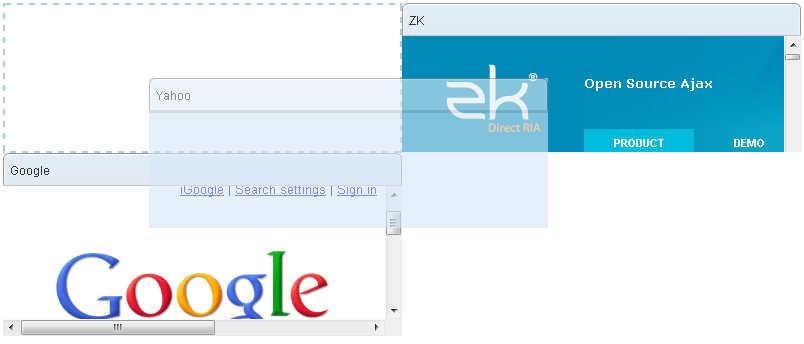
<portallayout>
    <portalchildren width="50%">
        <panel height="150px" title="Yahoo">
            <panelchildren>
                <iframe  src="http://www.yahoo.com/"/>
            </panelchildren>
        </panel>
        <panel height="300px" title="Google">
            <panelchildren>
                <iframe  src="http://www.google.com/"/>
            </panelchildren>
        </panel>
    </portalchildren>
    <portalchildren width="50%">
        <panel height="150px" title="ZK">
            <panelchildren>
                <iframe  src="http://www.zkoss.org/"/>
            </panelchildren>
        </panel>
    </portalchildren>
</portallayout>
Properties
Title
since 9.0.0 Sets the title of the portalchildren. If the title is not empty/null, frame design will be applied.
Frame Design
PortalChildren now provides a frame design, making it extremely easy to create a Kanban-like layout for your application. To turn on the PortalChildren frame design, just specify the title attribute on the PortalChildren.
Example
Each PortalChildren with title can be used as a Kanban board column to represent a process stage, and the panels inside each column represent tasks in the said stage. The number next to the PortalChildren title is a counter, indicating the total number of panels inside the said column.
If a panel has a panel title, users can drag and hold the panel title to move it to the appropriate column. If the panel does not have a panel title, you can drag the small dragging button at the top of the panel to move.
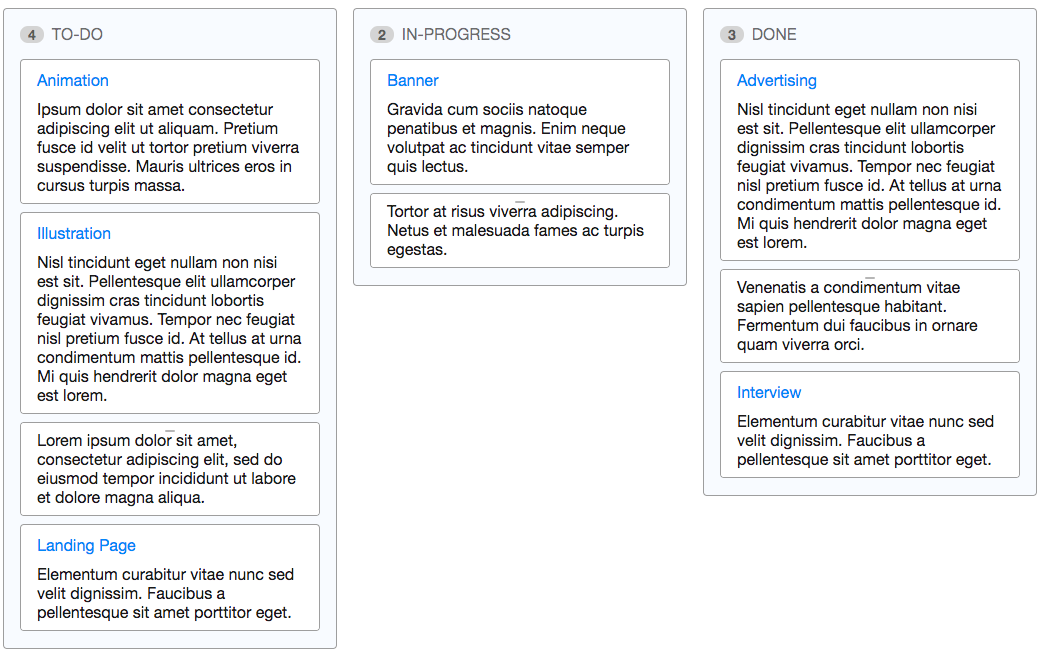
<zk>
  <style>
    .z-panel {
      width: 300px;
    }
  </style>
   <portallayout>
     <portalchildren title="TO-DO">
       <panel title="Animation" border="normal">
         <panelchildren>......</panelchildren>
       </panel>
       <panel title="Illustration" border="normal">
         <panelchildren>......</panelchildren>
       </panel>
       <panel border="normal">
         <panelchildren>......</panelchildren>
       </panel>
       <panel title="Landing Page" border="normal">
         <panelchildren>......</panelchildren>
       </panel>
    </portalchildren>
     <portalchildren title="IN-PROGRESS">
       <panel title="Banner" border="normal">
         <panelchildren>......</panelchildren>
       </panel>
       <panel border="normal">
         <panelchildren>......</panelchildren>
       </panel>
     </portalchildren>
      <portalchildren title="DONE" >
       <panel title="Advertising" border="normal">
         <panelchildren>......</panelchildren>
       </panel>
       <panel border="normal">
         <panelchildren>......</panelchildren>
       </panel>
       <panel title="Interview" border="normal">
         <panelchildren>......</panelchildren>
       </panel>
     </portalchildren>
   </portallayout>
</zk>
CounterVisible
since 9.0.0 Sets whether the counter is visible. Meaningful only if frame design is applied.
Supported Events
- Inherited Supported Events: XulElement
Supported Children
* Panel