BarcodeScanner
Barcodescanner
- Demonstration: Barcodescanner
- Java API: org.zkoss.zkmax.zul.Barcodescanner
- JavaScript API: zkmax.barscanner.Barcodescanner
since 8.6.0
Employment/Purpose
A Barcodescanner component is used to scan and decode the barcode on
the client side. There are many properties to dealing with the barScan
component. First, you could use the type property to specify the type
of barcode, for example: qr, code128, …, after choosing the type you
want, you could scan the barcode by the scanner. You can choose the
continue scanning by setting continuous=”true”, and setting the scan
rate by setting interval=”1000”, the unit of interval is millisecond.
You can turn on the scanner switch by setting enable=”true”, or close it
by enable=”false”.
Common Use Cases
- Scanning product codes in inventory management systems
- QR code verification in check-in applications
- Real-time barcode capture in logistics workflows
- License plate or ID document scanning scenarios
Request Camera API permission
Barcodescanner requires access to the camera API from the client’s browser. Please refer to the Camera component, Request Permission First documentation section regarding API permissions requests and secure access.
Example
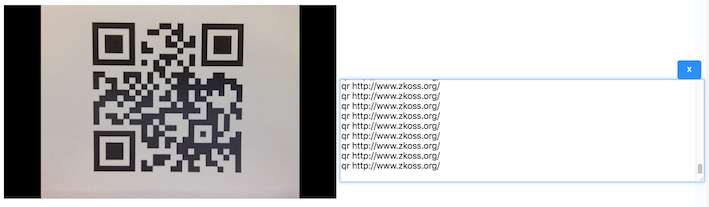
 <barcodescanner type="qr,code128" continuous="true" interval="500" height="100px"
  onDetect='Clients.log(event.getType() + " " + event.getResult())'/>
Scan the barcode by the Barcodescanner.
Browser Support
- IE browsers are not supported
- For iOS Safari only supports 11+
Note: iOS Chrome and other WebView browsers are not supported due to Apple’s restriction.
Note: due to Chrome’s security policy, starting from Chrome 47, getUserMedia() requests are only allowed from secure origins: HTTPS or localhost.
Accessibility
since 9.5.0
Keyboard Support
None.
Labeling with ARIA
To name a component with ARIA attribute by adding the aria-label
client attribute to the component, please refer to
ZK Developer’s Reference/Accessibility#Specify_ARIA_Attributes
Properties
Type
This component supports 9 types for 1D and 1 type for 2D barcode by default. After choosing the type of barcode, the component can scan the barcode of the type you choose. You also can scan multiple types at one time separated by a comma, for example
<barcodescanner type="qr,code128"/>
Supported types:
- 1D CODE Family
- CODE128
- CODE39
- CODE39VIN,
- in the 1D EAN Family
- EAN (which includes EAN13)
- EAN8,
- in the 1D Others Families
- CODABAR
- UPC
- UPC_E
- I2OF5
- 2D Family
- QR
Note:
(1) The type that Barcodescanner supported can be referenced as Supported Barcode Type (Default: CODE128).
(2) Warn: if too many types are set for the widget, it may reduce the detecting accuracy.
(3) The barcode will restart every time you change the type.
Continuous
Continuous is a boolean attribute to let the Barcodescanner can interval scan or not.
<barcodescanner type="qr" continuous="true"/>
Interval
The interval is a subsidiary, integer attribute for continuous scan. The interval=”500” means the scanner will scan once every 500 millisecond.
<barcodescanner type="code128" continuous="true" interval="500"/>
Enable
The enable is boolean attribute to switch the BarcodeScanner. You can use the zk mvvm mechanism to to switch the BarcodeScanner.
 <window viewModel="@id('vm')@init('xxxVM')">
   <barcodescanner type="code128" enable= "@bind('vm.enable')"/>
 </window>
Constraints
Default Value: null (falls back to {video: {facingMode: 'environment'}})
Sets the camera MediaStreamConstraints as a Java Map. When not specified the scanner defaults to the rear-facing camera. The value is a Java Map object; construct it in a <zscript> block or pass it from a composer / ViewModel.
<zscript>
    import java.util.HashMap;
    import java.util.Map;
    Map video = new HashMap();
    video.put("facingMode", "user");   // front camera
    Map cons = new HashMap();
    cons.put("video", video);
</zscript>
<barcodescanner type="qr" constraints="${cons}"/>
See also constraintsString for a JSON-string alternative that is convenient in pure ZUML.
ConstraintsString
Default Value: null (falls back to {video: {facingMode: 'environment'}})
Sets the camera MediaStreamConstraints as a JSON string. This is the ZUL-friendly alternative to constraints — you can inline the value directly without a <zscript> block. Passing an empty string or null clears the override and restores the default rear-camera behaviour.
<barcodescanner type="qr"
    constraintsString='{"video":{"facingMode":"user"}}'/>
ErrorAcceptance
Default Value: 0.1 (10%)
since 8.6.1
Sets the error tolerance for 1D barcode scanning. The value must be in the range [0, 1]: 0 means no error is accepted (strictest), 1 (100%) effectively disables the check. Used together with consistencyBufferSize and consistencyThreshold to tune 1D scan accuracy.
<!-- Accept up to 5% error in 1D barcode reads -->
<barcodescanner type="code128" continuous="true" errorAcceptance="0.05"/>
registerLibrary
registerLibrary(constructor, library_name, [array of types] ) is a
class-level javascript function to register a custom library into
barcode widget. The mechanism is like the registerLibrary() in
Barcode. The constructor is a json-format parameter to define the
required setting for the library.
constructor =
{
    create: the function to create a reader prototype,
    name: the name of the reader, and we will mount the reader on the widget by wgt._'name'+'Reader',
    init: a function to initialize the reader properties,
    open: a function to enable the detecting function,
    decodeOnce: a reader decode method, and zk will implement the contScan attribute for you,
    setType: a function to connect the reader and widget types function,
    other: a json properties to let you to attend the reader method.(future feature)
}
Like barcode, if you register your own custom library into Barcodescanner, every single widget should use the custom library object. The way to register is zkmax.barscanner.Barcodescanner.registerLibrary(…). Here is an example that how we inject the quagga library object into the widget:
<?script src="myBarcodescannerLibrary.js"?>
<script>
    ...
    zk.afterLoad('zkmax.barscanner', function () {
        zkmax.barscanner.Barcodescanner.registerLibrary({
            create: jq.extend(true, {}, Quagga), //the reader
            name: "QUAGGA",
            init: zkmax.barscanner.Barcodescanner._quaggaInit,  //@param(wgt, video, canvas)
            open: zkmax.barscanner.Barcodescanner._quaggaOpen, //@param(wgt, video, canvas)
            decode: zkmax.barscanner.Barcodescanner._quaggaDecode,//@param(wgt, reader)
            setTypes: zkmax.barscanner.Barcodescanner._quaggaSetType, //@param()
            other: null
         }, 'library-name', ['type1', 'type2', ...]);
    });
    ...
</script>
And, you need to implement some methods to build the reader.
<?script src="implementation.js"?>
<script>
   ...
    zkmax.barscanner.Barcodescanner._quaggaInit: function (wgt, video, canvas) {
       /***the reader init method***/
      reader.onDetected() {
         reader.processing = false;
         .......
     }
   }
    zkmax.barscanner.Barcodescanner. _quaggaOpen: function (wgt, video, canvas) {
       /***the open method for quagga reader init method***/
   }
    zkmax.barscanner.Barcodescanner._quaggaDecode: function (wgt, reader) {
       reader.processing = true;
       /***the decode method for quagga reader***/
   }
   zkmax.barscanner.Barcodescanner._quaggaSetType: function (wgt, video, canvas) {
       /***the set type method for quagga reader***/
   }
    ...
</script>
For most barcode readers, they would have some common points: init,
open, decode, on detect… When injecting a reader into the widget, we
use those common points to connect the reader and the widget. Here you
have to implement some functions for this. As above, you need to
implement the init, open, decode, and some other required methods. Here
is a little reminder that, because different libraries have different
designs for the decode and onDetect in their library, you may need to
add a reader.processing = true at the beginning of decoding function,
and reader.processing = false at the detected callback function by
yourself. After you inject the library object into the widget, we will
generate the JavaScript object mount on the widget. We generate zinit,
zexecute, zopen, method onto the reader and we will use it internally.
You can get the reader by wgt._‘your_libarary_name’Reader.
Note:
As a barcode, If you want to register the custom library for all the web
applications, you can add WEB-INF/lang-addon.xml.
myRegister.js
    zk.afterLoad('zkmax.barcode', function () {
        zkmax.barscanner.Barcodescanner.registerLibrary(function mybarcode(wgt) {
            ...
             };
         }, 'library-name', ['type1', 'type2', ...]);
    });
Consistency Buffer (1D barcode only)
The accuracy of 1D barcode scan is not as good as 2D QR code. The
scanned result might be wrong if the image quality is not good (such as
blurred or dark). To prevent false positive results, we can set
consistencyBufferSize and consistencyThreshold.
- Consistency buffer size: the number of past events to buffer (first in, first out)
- Consistency buffer threshold : the number of buffered events with the same value necessary to fire an event to the server and clear the buffer.
Defaults values
- Consistency buffer size: 5
- Consistency buffer threshold: 3
It means it requires at least 3 out of 5 scan events to be consistent before firing.
If you want to turn off this feature, simply set consistencyBufferSize
and consistencyThreshold both 1.
ConsistencyBufferSize
Defaults to 5. The number of past scan events to buffer (first in, first out).
ConsistencyThreshold
Defaults to 3. The number of buffered events with the same value necessary to fire an event to the server and clear the buffer.
Supported Barcode Type (Default)
| Name | Barcodescanner Type |
|---|---|
| 1D CODE Family | CODE128, CODE39, CODE39VIN, |
| 1D EAN Family | EAN, EAN8, |
| 1D Others | CODABAR, UPC, UPC_E, I2OF5 |
| 2D | QR |
Supported Events
| Name | Event Type | Description |
|---|---|---|
onDetect |
org.zkoss.zkmax.zul.event.DetectEvent | Notifies if the barcode scanner detect a barcode message. |
- Inherited Supported Events: XulElement
Supported Children
*NONE