CKEditor
ZK CKEditor
- Demonstration: WYSIWYG Editor
- Java API: N/A
- Source code: GitHub zkoss/zkckeditor after 3.6.0.0.
Maven
You need to include CKEditor jar in pom.xml before using it because it has a different group id from ZK other components.
        <dependency>
            <groupId>org.zkoss.zkforge</groupId>
            <artifactId>ckez</artifactId>
            <version>${ckez.version}</version>
        </dependency>
Check the latest version on CE repository.
Employment/Purpose
The component is a wrapper of CKEditor
CKEditor is a popular HTML on-line text editor developed by Frederico Caldeira Knabben. It is used inside web pages. It’s a WYSIWYG editor, which means that the text being edited on it looks as similar as possible to the results users have when publishing it. It brings to the web common editing features found on desktop editing applications like Microsoft Word and OpenOffice.
Example
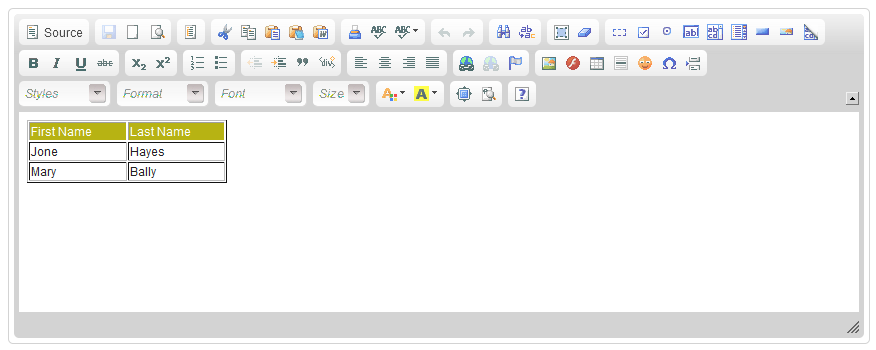
<ckeditor width="850px">
<attribute name="value"><![CDATA[
<table width="200" cellspacing="1" cellpadding="1" border="1">
    <tbody>
        <tr style="background: #B7B313; color:white;">
            <td>First Name</td>
            <td>Last Name</td>
        </tr>
        <tr>
            <td>Jone</td>
            <td>Hayes</td>
        </tr>
        <tr>
            <td>Mary</td>
            <td>Bally</td>
        </tr>
    </tbody>
</table>
]]></attribute>
</ckeditor>
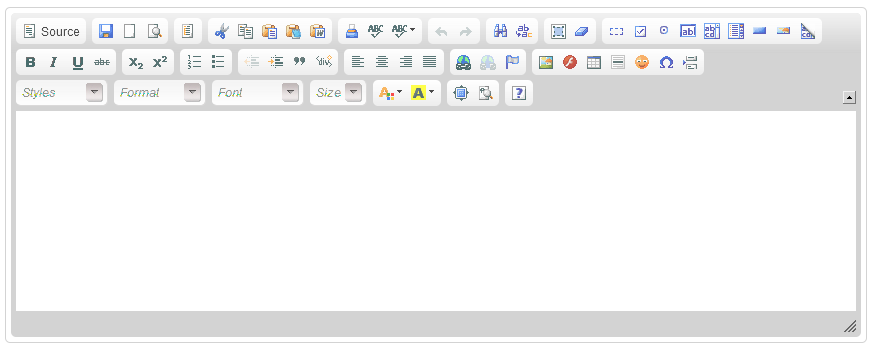
Enable save button
It will enable the “Save” button when inside a form.
<zk xmlns:n="http://www.zkoss.org/2005/zk/native">
    <n:form>
    <ckeditor width="50%" />
    </n:form>
</zk>
Image File Browser
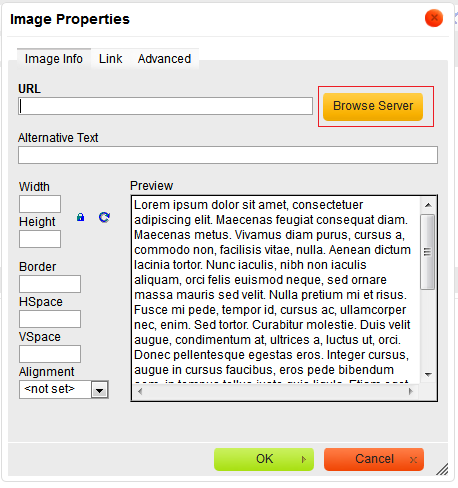
ZK CKEditor provides a default image file browser for browsing the images in a server path you specify. When you click “Browse Server”, CKEditor will open a new window and list all images in the file browser.
<ckeditor filebrowserImageBrowseUrl="img"/>

Custom File browser
since 3.6.0.2 If you wish to customize your own file browser, you can change the location by calling CKeditor.setFilebrowserImageUploadUrl(page_url), and refer to CKEditor Developers Guide to create your custom file browser.
File upload
since 3.6.0.2
This feature is only enabled when you specify
filebrowserImageUploadUrl attribute. ZK CKEditor provides a default
file upload handler for uploading the files to the folder you specify.
You can only specify a folder under the web context root because a web
application can access its own folder.
<ckeditor filebrowserImageBrowseUrl="img" filebrowserImageUploadUrl="img"/>


Custom File upload handler
since 3.6.0.2 If you wish to customize your own file upload handler, you can change the location by calling CKeditor.setFileUploadHandlePage(page_url), and refer to CKEditor Developers Guide to create your custom file upload handler.
Copy-Paste Images
You need to enable file upload to allow copying a local image from your machine to CKEditor.
since 4.17.1.0 If file upload is enabled, pasting a local image will upload the image to the server. If it’s disabled, pasting a local image will insert an image with data URL.
Custom Configuration
customConfigurationsPath
Prepare a javascript file for configuration like:
config.js
CKEDITOR.editorConfig = function(config) {
    //enable spell checker
    config.disableNativeSpellChecker = false;
    //Automatically enables "Spell Check As You Type" on editor startup
    config.scayt_autoStartup = true;
    //locale
    config.language = 'de';
};
Please refer to http://docs.ckeditor.com/#!/api/CKEDITOR.config for complete configuration options.
Specify the configuration file at customConfigurationsPath attribute
with the absolute path.
<ckeditor customConfigurationsPath="/config.js"/>
in Java
    <ckeditor id="editor"/>
    <zscript><![CDATA[
Map configMap = new HashMap();
configMap.put("language", "de");
editor.setConfig(configMap);
    ]]></zscript>
Custom Save Button
You can implement a custom plugin to enable the save button and fire the onChange event to the server to save the editor’s content. Please refer to the example zul.
Resizable attribute and Sizing
since 4.16.1.1
default: true
The ZK CKEditor container can be resizable with the resizable attribute since 4.16.1.1.
<ckeditor resizable="true" .../>
If resizable="true" (default) is set, and the editor’s height is unset
(from height=”” or vlflex=”” attributes), the whole component height
will be modified on user resizing. In this case, the editor’s outer div
dimensions will resize itself according to a user dragging.
If the component is resizable and has a fixed height, it will display a scrollbar in order to maintain its declared size, but allow the user to modify the height of the editing space. In this case, the editor outer div dimensions do not change.
ReadOnly
You can make CKEditor read-only with its config.
    <ckeditor id="editorReadOnly" width="50%" height="500px" value="This is read-only example"/>
    <zscript><![CDATA[
    editorReadOnly.setConfig(Map.of("readOnly", true));
    ]]></zscript>
Plugin Installation
-
Download a plugin according to CKEditor version
ZK Ckedtiror version aligns the bundled CKEditor version.
-
put plugin folder into zkckeditor’s plugins folder
In ZK, you have to copy the plugin folder into the folder below: (assuming a Maven project)
/resources/web/js/ckez/ext/CKeditor/plugins/
-
setup in a custom config js
Then provide a config.js mentioned at Custom Configuration.
Example
- Download Line Height plugin
-
Put its js files under
/resources/web/js/ckez/ext/CKeditor/plugins/lineheight - Setup in your custom config js
CKEDITOR.editorConfig = function(config) {
     config.extraPlugins = 'lineheight';
}
Work with ZK6 MVVM
since 6.0.0
For work with ZK6 MVVM, it is required to create an addon XML and add the server annotation as follows:
WEB-INF/ckez-bind-addon.xml
<?xml version="1.0" encoding="UTF-8"?>
<language-addon>
    <!-- The name of this addon. It must be unique -->
    <addon-name>ckezbind</addon-name>
    <!-- Specifies what other addon this depends
    <depends></depends>
    -->
    <!-- Which language this addon will be added to -->
    <language-name>xul/html</language-name>

    <component>
        <component-name>ckeditor</component-name>
        <extends>ckeditor</extends>
        <annotation>
            <annotation-name>ZKBIND</annotation-name>
            <property-name>value</property-name>
            <attribute>
                <attribute-name>ACCESS</attribute-name>
                <attribute-value>both</attribute-value>
            </attribute>
            <attribute>
                <attribute-name>SAVE_EVENT</attribute-name>
                <attribute-value>onChange</attribute-value>
            </attribute>
            <attribute>
                <attribute-name>LOAD_REPLACEMENT</attribute-name>
                <attribute-value>value</attribute-value>
            </attribute>
            <attribute>
                <attribute-name>LOAD_TYPE</attribute-name>
                <attribute-value>java.lang.String</attribute-value>
            </attribute>
        </annotation>
    </component>
</language-addon>
then add it into WEB-INF/zk.xml
<zk>
    <language-config>
        <addon-uri>/WEB-INF/ckez-bind-addon.xml</addon-uri>
    </language-config>
</zk>
Properties
value
Default Value: ""
The HTML content of the editor. This is the data-bound property (ZK MVVM default save attribute, fired on onChange). See Example and Work with ZK6 MVVM.
width
Default Value: 100%
height
Default Value: "" (auto)
toolbar
Default Value: null (CKEditor’s Full toolbar)
Selects which CKEditor toolbar set the editor shows. The value is the name of a toolbar definition known to CKEditor (its built-in Full and Basic sets, or a custom set you declare in your configuration file via customConfigurationsPath). Setting an empty string is treated as null.
<ckeditor toolbar="Basic"/>
autoHeight
Default Value: false
since 4.16.1.1
When true, the editor grows to fit its content instead of using a fixed editing area. Leave height unset when enabling this so the component can size itself.
<ckeditor autoHeight="true"/>
config
Default Value: null
A java.util.Map of CKEditor configuration options applied at instance creation. See Custom Configuration. Build it in <zscript> / a ViewModel and assign via EL.
resizable
Default Value: true
since 4.16.1.1
Whether the container can be resized by the user. See Resizable attribute and Sizing.
customConfigurationsPath
Default Value: null
Absolute path to a JavaScript configuration file. See Custom Configuration.
File-browser URLs
These six attributes wire CKEditor’s “Browse Server” / “Upload” buttons in its Link, Image, and Flash dialogs to server paths. Browse URLs open a file browser; Upload URLs receive uploaded files (the Upload button appears only when its URL is set). All default to null (the corresponding button is hidden). A path is resolved against the web-application context root.
| Attribute | Dialog | Role |
|---|---|---|
filebrowserBrowseUrl |
Link / generic | Browse server for a file |
filebrowserImageBrowseUrl |
Image | Browse server for an image (see Image File Browser) |
filebrowserFlashBrowseUrl |
Flash | Browse server for a Flash file |
filebrowserUploadUrl |
Link / generic | Upload a file |
filebrowserImageUploadUrl |
Image | Upload an image (see File upload) |
filebrowserFlashUploadUrl |
Flash | Upload a Flash file |
<ckeditor filebrowserBrowseUrl="files" filebrowserUploadUrl="files"/>
fileWriter
Default Value: a built-in writer that saves uploaded files under the upload folder
Supplies a custom strategy for persisting files uploaded through the file-browser Upload URLs. Implement org.zkforge.ckez.CkezFileWriter — its single method String writeFileItem(String uploadUrl, String realPath, FileItem item, String type) writes the item and returns the URL the editor should reference. Because the value is a Java object, build it in a <zscript> block (BeanShell — use an anonymous inner class, not a lambda) or a composer / ViewModel and reference it via EL.
<zscript><![CDATA[
import org.zkforge.ckez.CkezFileWriter;
import org.apache.commons.fileupload.FileItem;

CkezFileWriter writer = new CkezFileWriter() {
    public String writeFileItem(String uploadUrl, String realPath, FileItem item, String type) {
        // persist item under realPath, then return the public URL
        return uploadUrl + "/" + item.getName();
    }
};
]]></zscript>
<ckeditor filebrowserImageUploadUrl="img" fileWriter="${writer}"/>
Supported Events
| Name | Event Type | Description |
|---|---|---|
onChange |
org.zkoss.zk.ui.event.InputEvent | Denotes the content of an input component has been modified by the user. |
onChanging |
org.zkoss.zk.ui.event.InputEvent | Denotes that user is changing the content of an input component. Notice that the component’s content (at the server) won’t be changed until onChange is received. Thus, you have to invoke the getValuemethod in the InputEventclass to retrieve the temporary value. |
onSave |
org.zkoss.zk.ui.event.InputEvent | Denotes the save button of the CKEditor component has been clicked by the user. |
Supported Children
*NONE