Borderlayout
- Demonstration: Borderlayout
- Java API: org.zkoss.zul.Borderlayout
- JavaScript API: zul.layout.Borderlayout
Employment/Purpose
The layout component is a nested component. The parent component is
borderlayout, and its children components include north, south,
center, west, and east. All extra space is placed in the center
area. The combination of children components of borderlayout is free.
A borderlayout could be nested to another borderlayout (actually, almost all kinds of components) to form a complicated layout.
Common Use Cases
- Application shell / page layout: Use
borderlayoutas the outermost container of a full-page application, placing a toolbar or breadcrumb innorth, a status bar insouth, a navigation tree inwest, detail panels ineast, and the main working area incenter. - Nested split views: Nest a second
borderlayoutinside a region (e.g., insidenorthorcenter) to create multi-pane editors or master/detail splits without reaching for a custom CSS layout. - Resizable panels: Combine
splittable="true"andcollapsible="true"on individual regions to let users resize or hide side panels at runtime — common in dashboards and IDEs built with ZK.
Example
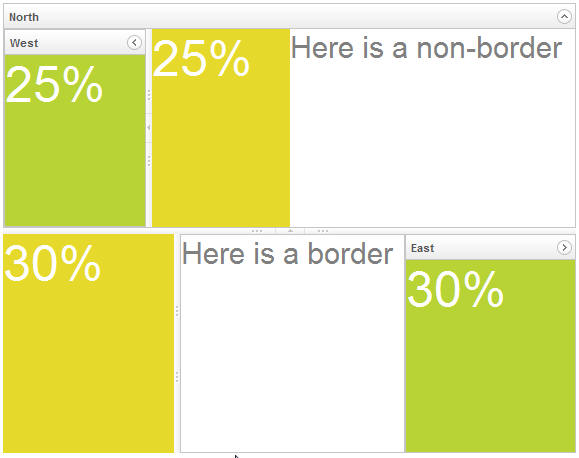
<borderlayout height="450px">
    <north title="North" maxsize="300" size="50%" splittable="true" collapsible="true">
        <borderlayout>
            <west title="West" size="25%" flex="true" maxsize="250" splittable="true" collapsible="true">
                <div style="background:#B8D335">
                    <label value="25%"
                        style="color:white;font-size:50px" />
                </div>
            </west>
            <center border="none">
                <div style="background:#E6D92C" vflex="1">
                    <label value="25%"
                        style="color:white;font-size:50px" />
                </div>
            </center>
            <east size="50%" border="none">
                <label value="Here is a non-border"
                    style="color:gray;font-size:30px" />
            </east>
        </borderlayout>
    </north>
    <center border="0">
        <borderlayout>
            <west maxsize="600" size="30%" border="0" splittable="true">
                <div style="background:#E6D92C" vflex="1">
                    <label value="30%"
                        style="color:white;font-size:50px" />
                </div>
            </west>
            <center>
                <label value="Here is a border"
                    style="color:gray;font-size:30px" />
            </center>
            <east title="East" size="30%" collapsible="true">
                <div style="background:#B8D335"  vflex="1">
                    <label value="30%"
                        style="color:white;font-size:50px" />
                </div>
            </east>
        </borderlayout>
    </center>
</borderlayout>
How to Layout
Borderlayout divides its child components into to five areas: North, South, East, West and Center. The heights of North and South are firstly decided, the remainder space is then given to Center as its height. Note that East and West also takes on the height of Center.
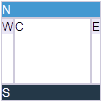
<borderlayout width="100px" height="100px">
    <north>
        <div style="background:#008db7;color:white;">N</div>
    </north>
    <south>
        <div style="background:#112f37;color:white;">S</div>
    </south>
    <center>
        <div>C</div>
    </center>
    <east>
        <div style="background:#f2f2f2;">E</div>
    </east>
    <west>
        <div style="background:#f2f2f2;">W</div>
    </west>
</borderlayout>
flex
Layout region shares the height of Borderlayout with a distributing sequence of: North, South and Center while the heights of East and West takes on the height of Center. In the previous sample, the div in the layout region does not take up all of layout region’s space. In order for the child to occupy the whole area, please set vflex=”1” to the child component.
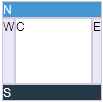
<borderlayout width="100px" height="100px">
    <north>
        <div style="background:#008db7;color:white;">N</div>
    </north>
    <south>
        <div style="background:#112f37;color:white;">S</div>
    </south>
    <center>
        <div>C</div>
    </center>
    <east>
        <div vflex="1" style="background:#f2f2f2;">E</div>
    </east>
    <west>
        <div vflex="1" style="background:#f2f2f2;">W</div>
    </west>
</borderlayout>
Scrolling
- The height of Center depends on Borderlayout but not on its child, therefore, the height of Center will not be expanded by the growing size of its child components. If Center’s height is too short for it’s child, Center will cut out the contents of it’s child, hence, to avoid this, specify autoscroll=”true” to Center in order to assign Center to handle the scrolling.
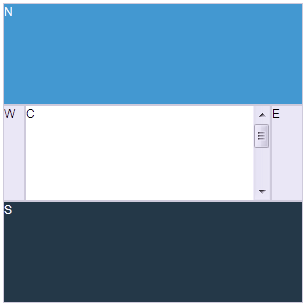
<borderlayout width="300px" height="300px">
    <north>
        <div height="100px"  style="background:#008db7;color:white;">N</div>
    </north>
    <south>
        <div height="100px"  style="background:#112f37;color:white;">S</div>
    </south>
    <center autoscroll="true">
        <div height="200px">C</div>
    </center>
    <east flex="true">
        <div width="30px" style="background:#f2f2f2;">E</div>
    </east>
    <west flex="true">
        <div width="20px" style="background:#f2f2f2;">W</div>
    </west>
</borderlayout>
since 7.0.0
The autoscroll attribute will create floating scrollbar and it is not visible unless user mouse over on the region. To turn off the floating scrollbar and use browser’s default scrollbar, please add the following configuration in zk.xml.
<library-property>
    <name>org.zkoss.zul.nativebar</name>
    <value>true</value>
</library-property>
Note: the value of org.zkoss.zul.nativebar is true by default ( since 7.0.2
Grown by children
- To make Borderlayout dependable on the size of its child components, vflex feature is applied. Specify vflex=”min” to each layout region and Borderlayout.
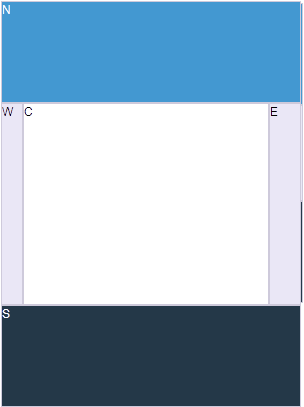
<borderlayout width="300px" vflex="min">
    <north vflex="min">
        <div height="100px"  style="background:#008db7;color:white;">N</div>
    </north>
    <south vflex="min">
        <div height="100px"  style="background:#112f37;color:white;">S</div>
    </south>
    <center vflex="min">
        <div height="200px">C</div>
    </center>
    <east flex="true">
        <div width="30px" style="background:#f2f2f2;">E</div>
    </east>
    <west flex="true">
        <div width="20px" style="background:#f2f2f2;">W</div>
    </west>
</borderlayout>
Borderlayout in a container
- Almost all containers’ heights depend on their child components, however, the height of Borderlayout does not expand accordingly to the sizes of its child components, therefore, when placing Borderlayout in a container, users have to specify a fixed height in order for Borderlayout to be visible.
<zk>
    <window title="win" border="normal">
        <borderlayout height="200px">
            <north>
                <div style="background:blue">N</div>
            </north>
            <south>
                <div style="background:blue">S</div>
            </south>
            <center>
                <div>C</div>
            </center>
            <east>
                <div style="background:yellow">E</div>
            </east>
            <west>
                <div style="background:yellow">W</div>
            </west>
        </borderlayout>
    </window>
</zk>
- The default height of Borderlayout is dependent on its parent component, therefore, users can also put Borderlayout in a container with a fixed height.
<zk>
    <window title="win" border="normal" height="200px">
        <borderlayout>
            <north>
                <div style="background:blue">N</div>
            </north>
            <south>
                <div style="background:blue">S</div>
            </south>
            <center>
                <div>C</div>
            </center>
            <east>
                <div style="background:yellow">E</div>
            </east>
            <west>
                <div style="background:yellow">W</div>
            </west>
        </borderlayout>
    </window>
</zk>
Accessibility
since 9.5.0
Keyboard Support
| Key | Description |
|---|---|
| ArrowUp / ArrowDown | When the splitter is focused, move the splitter vertically. |
| ArrowLeft / ArrowRight | When the splitter is focused, move the splitter horizontally. |
| Enter / Spacebar | When the splitter is focused, collapses the region. When the header is focused, collapsed/expanded the region. |
Labeling with ARIA
To name a component with ARIA attribute by adding the aria-label
client attribute to the component, please refer to
ZK Developer’s Reference/Accessibility#Specify_ARIA_Attributes
Properties
AnimationDisabled
since 5.0.8 You can specify this property to true to disable the animation effects of this component.
Configure to Disable the Animation Effects as Default
If you prefer to disable the animation effects as default, you could
configure ZK by adding the following to /WEB-INF/zk.xml
<library-property>
    <name>org.zkoss.zul.borderlayout.animation.disabled</name>
    <value>true</value>
</library-property>
CtrlKeys
since 11.0.0
Set ctrlKeys and onCtrlKey directly on a borderlayout to handle shortcuts
shared by its regions. When a component inside a region has focus, a matching
keystroke is sent to the borderlayout as a KeyEvent.
<zk>
    <borderlayout height="200px" ctrlKeys="^k^h"
            onCtrlKey='result.setValue("ctrlKey:" + event.getKeyCode());'>
        <north size="40px">
            <textbox placeholder="Focus here and press Ctrl+K"/>
        </north>
        <center>
            <textbox placeholder="Press Ctrl+K or Ctrl+H"/>
        </center>
    </borderlayout>
    <label id="result"/>
</zk>
With either textbox focused, Ctrl+K displays ctrlKey:75 and Ctrl+H displays
ctrlKey:72. An unregistered shortcut such as Ctrl+J does not trigger the
handler. See Keystroke Handling
for the supported key syntax.
The default value is null. Setting ctrlKeys to an empty string normalizes
it to null and clears the borderlayout’s shortcut configuration.
Per-region overrides
The closest matching handler to the focused component takes precedence.
If a region declares the same shortcut and an onCtrlKey listener, that
region handles the event; the borderlayout’s handler is not also invoked.
For example, Ctrl+K in the textbox below displays region:
<zk>
    <borderlayout height="200px" ctrlKeys="^k"
            onCtrlKey='result.setValue("layout");'>
        <center ctrlKeys="^k" onCtrlKey='result.setValue("region");'>
            <textbox/>
        </center>
    </borderlayout>
    <label id="result"/>
</zk>
MVVM binding
Within a view configured with BindComposer and a view model named vm,
bind the shortcut list with @load and pass the event’s key code to a command:
<borderlayout height="200px" ctrlKeys="@load(vm.shortcutKeys)"
        onCtrlKey="@command('onShortcut', code=event.keyCode)">
    <center>
        <textbox/>
    </center>
</borderlayout>
<label value="@load(vm.result)"/>
The corresponding view-model members can be defined as follows:
private String result = "none";

public String getShortcutKeys() { return "^k"; }
public String getResult() { return result; }

@Command
@NotifyChange("result")
public void onShortcut(@BindingParam("code") int code) {
    result = "ctrlKey:" + code;
}
The annotations are from org.zkoss.bind.annotation. Pressing Ctrl+K in the
textbox invokes the command with code equal to 75 and updates the label.
Context, Popup and Tooltip
since 11.0.0
Since ZK 11.0.0, Borderlayout extends
XulElement instead of
HtmlBasedComponent. In addition to ctrlKeys, it inherits these attributes:
| Attribute | Purpose |
|---|---|
context |
Specifies a popup or menu to open on a context-menu action, such as a right-click. |
popup |
Specifies a popup or menu to open on a click. |
tooltip |
Specifies a popup to show when the pointer hovers over the component. |
The values reference the popup or menu by ID and use the same syntax as other
XulElement components. See Popup
and XulElement — Tooltip.
Declare popup and menu components outside the borderlayout; its direct children
must still be layout regions.
Supported Events
| Name | Event Type | Description |
|---|---|---|
onCtrlKey |
KeyEvent | Since 11.0.0, a shortcut matching ctrlKeys can be handled directly by the borderlayout. |
Since ZK 11.0.0, inherited events are documented under
XulElement — Supported Events,
which also includes events inherited from HtmlBasedComponent.