Intellij IDEA ZK Plugin
The ZK IntelliJ IDEA Plugin is a dedicated tool designed to enhance the development experience for ZK applications within the IntelliJ IDEA environment. It provides robust features such as intelligent code completion, syntax validation, and seamless navigation, helping developers to write ZK applications more efficiently and with greater accuracy.
Layout Preview for ZUL Files
since 1.0.0
Editing a ZUL page normally means a build-deploy-refresh cycle before you can see what you typed. The Layout Preview removes that cycle: open any .zul file and the editor splits in two, with your source on the left and the page ZK actually renders on the right.
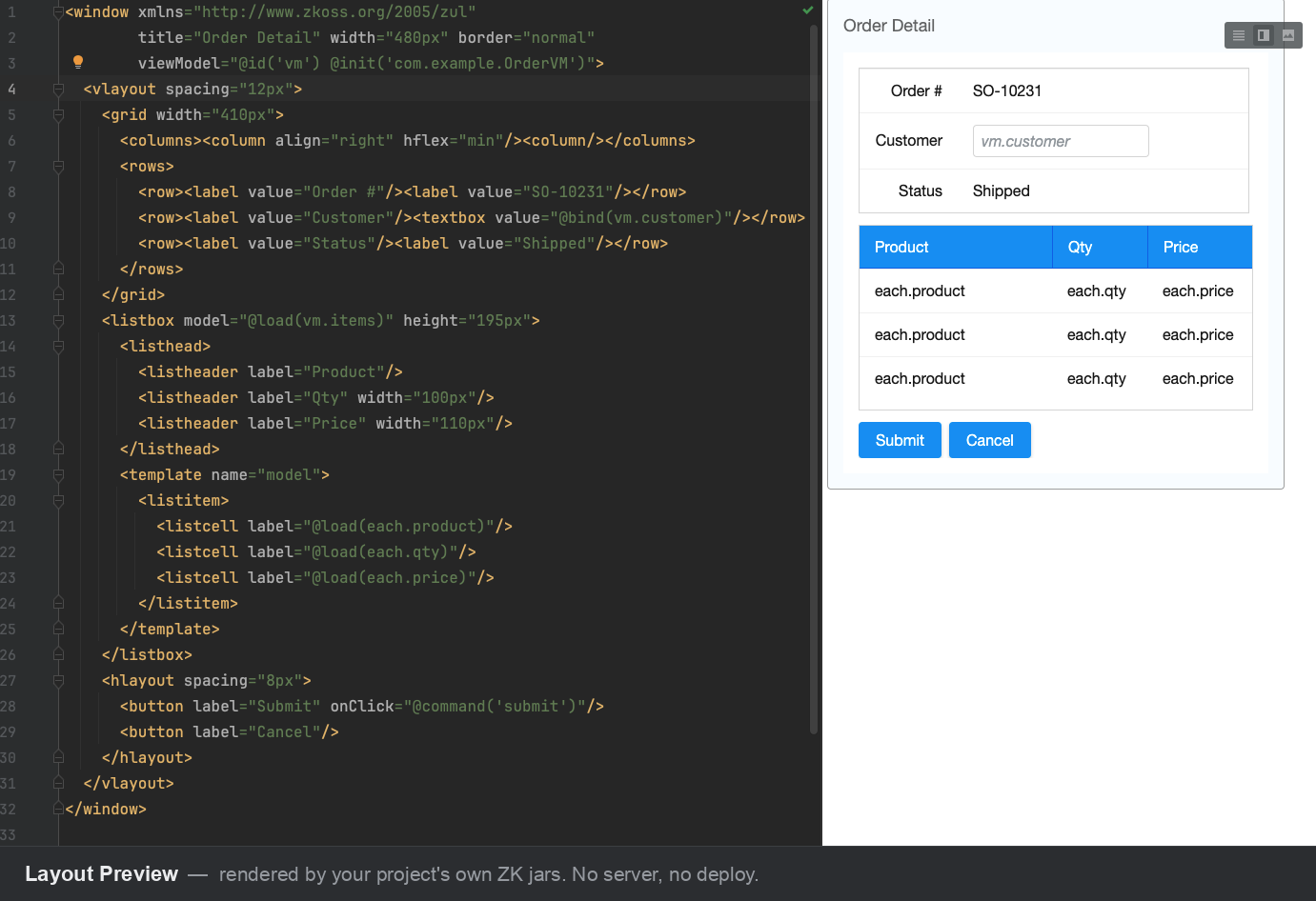
The right pane is not an approximation. It is the real HTML produced by your project’s own ZK jars, so component geometry, themes, and add-on widgets look exactly as they will in the browser. No server, no deployment, no build tool run.
How It Works
The plugin never renders ZUL inside the IDE process. It starts a small helper JVM that loads only your ZK jars and drives ZK’s own DHtmlLayoutServlet to produce the page’s first paint.
IntelliJ IDEA                             Helper JVM (started by the plugin)
+-------------------------+               +-----------------------------------+
|  .zul text editor       |  save (Ctrl+S)|  ZK preview launcher              |
|                         | ------------> |    +---------------------------+  |
|  +-------------------+  |               |    | your project's ZK jars    |  |
|  |  Layout Preview   |  |               |    | (DHtmlLayoutServlet)      |  |
|  |  (embedded        |  | <------------ |    +---------------------------+  |
|  |   browser)        |  |     HTML      |                                   |
|  +-------------------+  |               |    your compiled classes: NEVER   |
+-------------------------+               +-----------------------------------+
Two consequences follow from that boundary, and they explain almost everything you will see in the preview:
- Your own code never runs. ViewModels, composers, converters, and validators are not loaded. This keeps the preview safe and fast, but it also means data-bound values cannot be real.
- Only the first paint is produced. No AU round trip is simulated, so clicking a button or sorting a grid does nothing.
Using It
- Open any
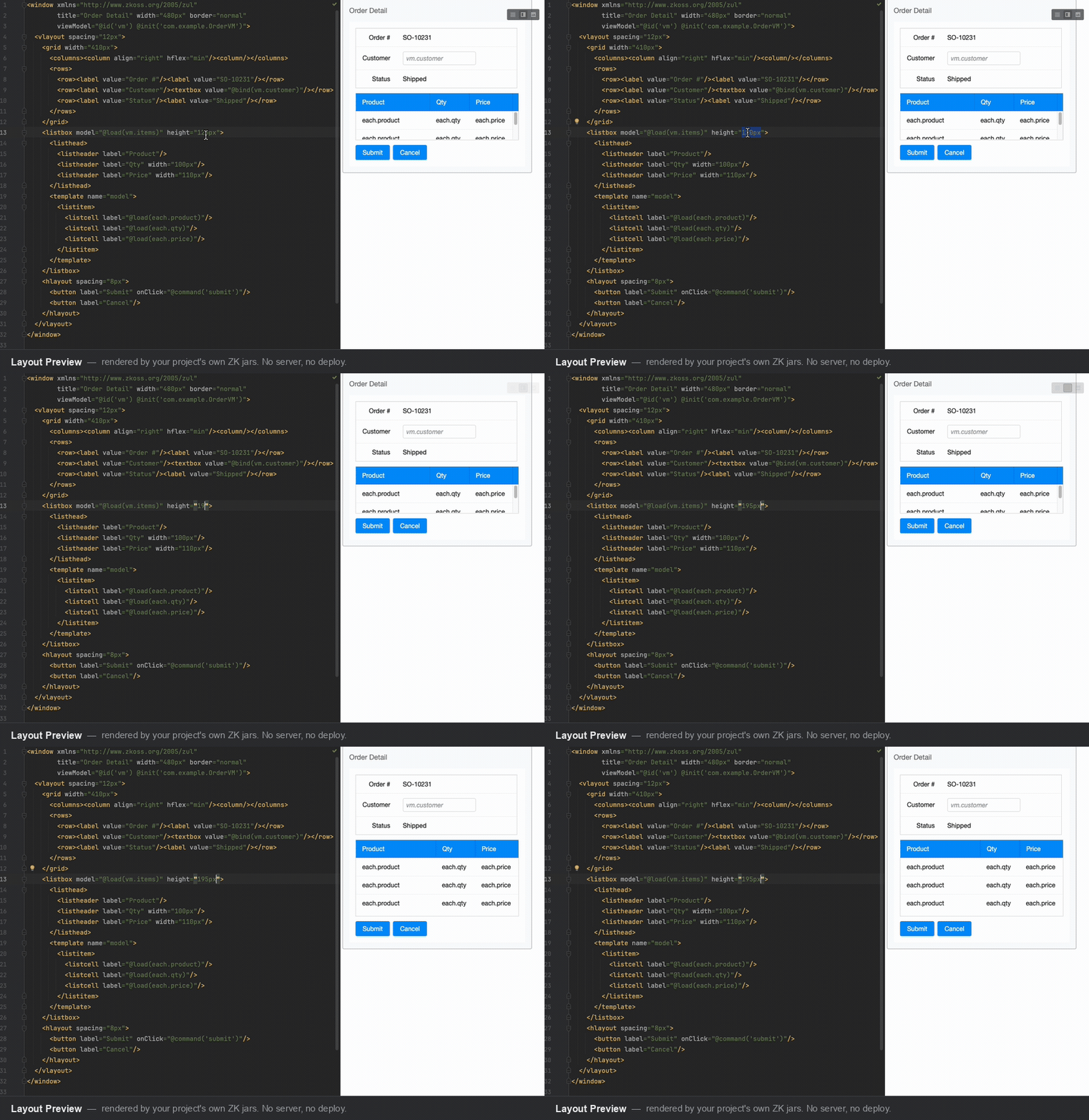
.zulfile. It opens as a split editor. The three buttons in the editor’s top-right switch between editor-only, split, and preview-only. - Edit as usual and save (
Ctrl+S/Cmd+S). The preview refreshes a fraction of a second after the file reaches disk. Unsaved edits do not refresh. - The first render shows a one-line banner reminding you that binding values are placeholders. Click Got it to dismiss it permanently.
Only .zul files get the split editor. Other ZK XML files such as zk.xml and lang-addon.xml keep the plain XML editor.
What Renders and What Doesn’t
| You wrote | In the preview |
|---|---|
Components, attributes, layout (window, grid, hlayout, styles) |
Rendered with real ZK HTML, CSS, and widget geometry |
EL implicit objects such as ${desktop}, ${execution}, ${page}, ${param} |
Live, resolved by ZK’s real page evaluation runtime |
Plain EL over page data, forEach, <variables> |
Evaluated |
MVVM bindings such as @load, @bind, @init, @save, @command |
Placeholder: the expression text is shown dimmed, because the ViewModel is never instantiated |
Model-bound <grid>, <listbox>, <tree> |
Placeholder rows, so the component keeps its real height instead of collapsing |
apply="my.Composer" and the automatic BindComposer |
No-op, user composers never run |
Client-side w: handlers, for example w:onClick |
Runs, it is ordinary browser JavaScript |
| Server-side listeners, paging, sorting, tree expansion | Not simulated, first paint only |
<zscript> |
Runs at compose time; a missing class produces a formatted error page |
This split is deliberate and permanent. Laying out a page is what the preview does; running your application is not.
Requirements
The preview renders when all of the following hold. Otherwise the pane explains which one is missing.
- ZK on the module’s IntelliJ classpath. The
.zulfile’s module must have at least one ZK jar on its resolved runtime classpath as IntelliJ sees it. Declaring ZK as a Maven or Gradle dependency gives you this automatically; a hand-configured module works too if ZK is attached as a module library. ZK sitting only inWEB-INF/libon disk is not enough. - An embedded browser (JCEF). The preview draws in the IDE’s embedded browser. See When JCEF is Unavailable below if your IDE runtime has it disabled.
- No build tool at render time. The preview never runs Maven or Gradle and never reads
pom.xmlorbuild.gradle. It reads only IntelliJ’s resolved project model, and the render helper is bundled inside the plugin. - No particular project JDK. The helper needs Java 17 and uses your project SDK when that SDK is 17 or newer; otherwise it quietly falls back to the IDE’s own runtime. A project on JDK 8 or 11 previews normally.
Supported Project Layouts
The preview infers a docroot from the file’s location so the page is served at its real production URL and its includes and resources resolve the same way they would on a server.
| Layout | Docroot used | Notes |
|---|---|---|
Maven or Gradle WAR (src/main/webapp/) |
the webapp or WEB-INF ancestor |
The classic layout, nothing to configure |
Spring Boot jar (src/main/resources/web/) |
the classpath web root |
Served at the production URL, and ~./ resources resolve from the classpath |
| Other or non-standard | nearest content root, else the file’s parent | Best effort; some resources may not resolve |
All three ZK path forms resolve in the preview exactly as on a server: absolute (<include src="/foo.zul"/>), relative (<apply templateURI="../foo.zul"/>), and classpath (<include src="~./foo.zul"/>).
Add-on Support
Commercial and community add-ons render like core components, including their own JS and CSS, so the page looks styled rather than like an unstyled box. ZK Charts, ZK Calendar, Pivottable, Keikai, and ZK CKEditor are all verified against real jars on both the javax and jakarta servlet variants. The same rules apply: first paint only, and the add-on jar must be on the module’s IntelliJ classpath.
Debugging a Blank or Wrong Render
Sometimes the page renders successfully and your component still is not visible. Right-click inside the preview pane for two tools.
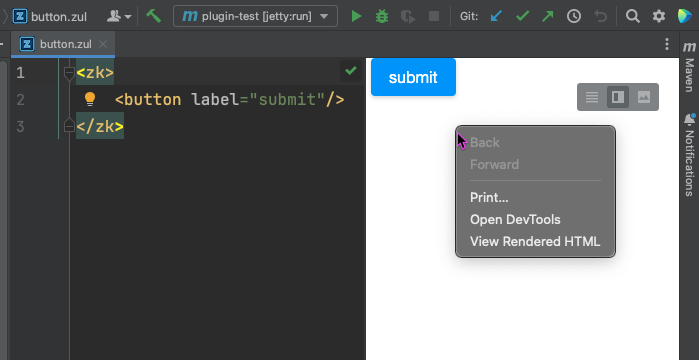
- View Rendered HTML opens the pane’s live DOM as a read-only editor tab, with syntax highlighting and
Ctrl+F. This answers the question a blank pane cannot: is the component missing, or present but hidden? If you find your<button>in the dump as az-buttonelement, the problem is CSS or geometry, not rendering. If it is absent, it never composed. - Open DevTools opens the full Chromium inspector. Use it when the dump is empty too: it is the only view that shows a JavaScript error or a failed resource request.
The browser’s own View Source entry is removed on purpose. It never worked in an embedded browser, and View Rendered HTML replaces it with something more useful for ZK, since a ZK response body is mostly a bootstrap script that the client engine expands into the DOM.
When a Page Fails to Render
A parse error, a missing <zscript> class, or an invalid component hierarchy produces a formatted error page in the preview pane rather than a raw stack dump. It shows the failure phase (parse or compose), the message, the failing file:line where ZK can report one, a collapsible stack trace, and a prefilled Report on GitHub link.
The report describes your render target, because a render failure is almost always about how the page was set up to render:
Plugin:  ZKIdea 1.0.0
IDE:     IntelliJ IDEA 2024.3 (IU-243.1)
OS:      Mac OS X 15.7.3
JDK:     17.0.4.1
Build:   Maven
Layout:  WAR webapp
Servlet: jakarta
ZK jars: zkmax-10.1.0-jakarta.jar, zkex-10.1.0-jakarta.jar, zk-10.1.0-jakarta.jar, ...
The last three lines are what make a report actionable: the jar list shows the ZK version, CE versus EE, and any dependency that failed to resolve (a missing zkex shows up as an absence), while the layout line explains include and ~./ failures. Only ZK jar file names are listed, never full paths and never your other dependencies.
When JCEF is Unavailable
If the embedded browser cannot run, the pane names the cause instead of just failing, and offers a way through.
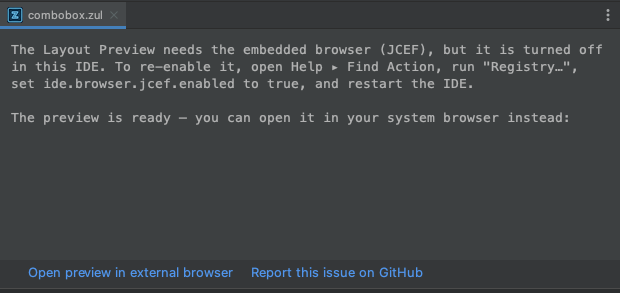
Switch the boot runtime to a JetBrains Runtime through Help > Find Action > Choose Boot Java Runtime for the IDE, or set ide.browser.jcef.enabled to true in the registry. Meanwhile, the Open preview in external browser link renders the same page in your system browser: the preview server keeps working and only the display moves out of the IDE.
Limitations by Design
- First paint only. Server-side listeners and AU updates such as paging, sorting, and tree expansion are not simulated.
- No user-class fidelity. ViewModels, composers, and converters never load, so MVVM values are placeholders and
@commandis unwired. This is the isolation guarantee, not a gap to be closed later. - Refresh on save, not on keystroke.
- Idle helper JVMs. One helper per distinct docroot and classpath pair stays up until the project closes.
Troubleshooting
| Symptom | Likely cause | Fix |
|---|---|---|
| Pane says the module has no ZK | ZK is not on the module’s IntelliJ classpath | Declare ZK as a Maven or Gradle dependency and reimport, or attach it as a module library |
| Pane says ZK is declared but the jars are not on disk | The dependency resolves in the build file but the local repository cache is missing | Reimport so the jars are downloaded again |
A bound value shows as literal text, for example vm.name |
Expected, the ViewModel does not run in the preview | Not an error; the same page on a real server shows the value |
| A button, click, or sort does nothing | Expected, first paint only | Client-side w: listeners do work; server logic is out of scope |
| Unknown component is reported for a tag | The jar defining the component is not on the module classpath, most often an add-on dependency that is commented out or failed to resolve | Add the add-on dependency and reimport; it is a classpath problem, not a typo |
~./page.zul reports Page not found although it runs under a server |
The directory holding web/ is not a recognized resource root |
Mark src/main/resources as a resource root and reimport |
| The preview did not update | The file is not saved, or it sits on an unrecognized layout | Save the file, then check the layout table above |
| The pane is blank with no error page | The page composed but painted nothing visible, or a client-side asset failed | Right-click and choose View Rendered HTML; if that dump is empty too, choose Open DevTools and check Console and Network |
ZUL File Support
since 0.1.0
The plugin offers comprehensive support for ZUL files, the core of ZK’s UI definition.
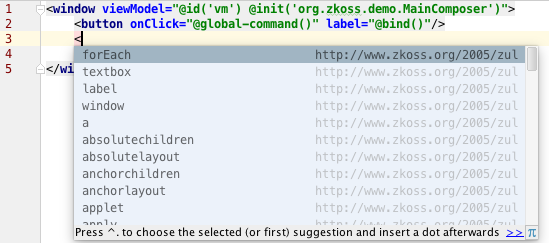
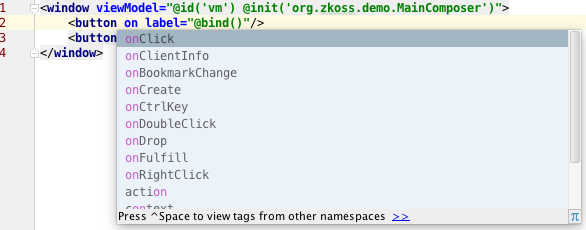
- Code Completion: Get intelligent suggestions for ZK components, attributes, and events as you type. This helps you write code faster and avoid typos.
- Class Navigation:
since 0.1.2
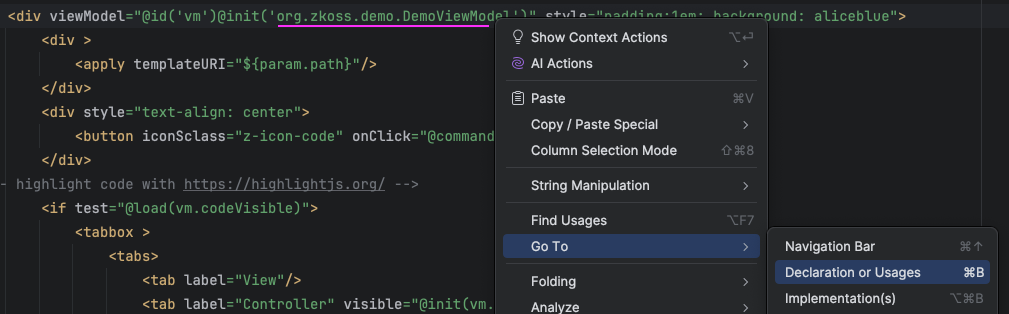
Quickly navigate from a component tag or a view model reference in your ZUL file directly to the corresponding Java class or method declaration in your project.
ZK Configuration File Support
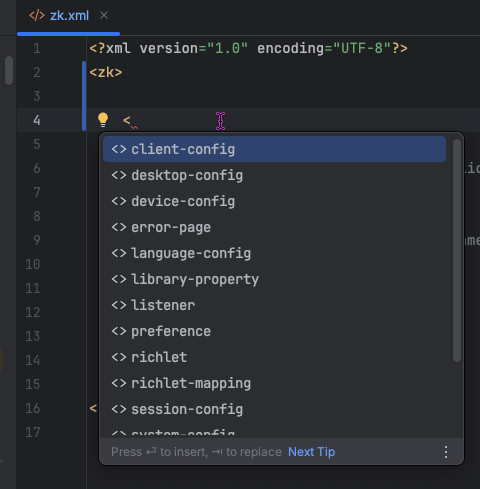
The plugin provides content assistance and validation for ZK’s XML configuration files. To enable these features, you should either use the default filenames (zk.xml, lang-addon.xml) or add the appropriate XML namespace to your custom-named files.
zk.xmlSupport: since 0.4.0 Get code completion and validation for the ZK configuration filezk.xml. The namespace isxmlns="http://www.zkoss.org/2005/zk/config".
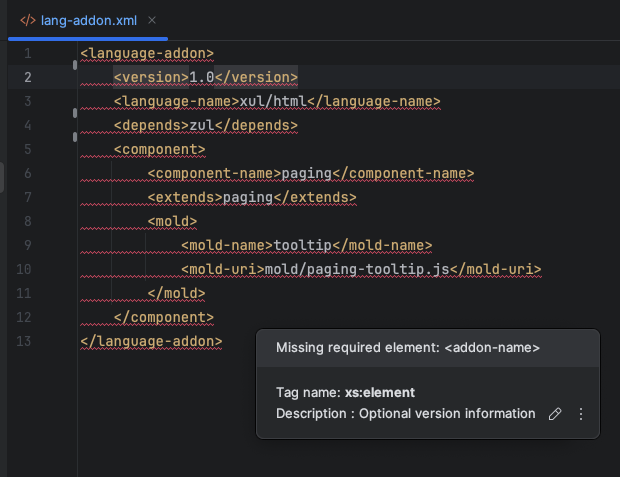
lang-addon.xmlSupport: since 0.4.0 The plugin also supports the language addon configuration file,lang-addon.xml, with code completion and validate the required elements. The namespace isxmlns="http://www.zkoss.org/2005/zk/lang-addon".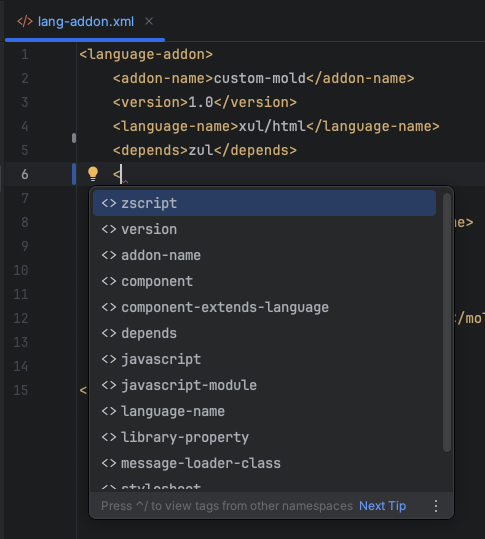
MVVM Development Support
since 0.1.2
For developers using the MVVM (Model-View-ViewModel) pattern, the plugin provides code completion for ZK’s MVVM annotations, such as @init, @load, @bind, @save, and @command.

Data Binding Navigation
since 0.6.0
- Property Navigation: Jump directly from property references in ZUL binding expressions (e.g.,
@load(vm.name)) to their corresponding Java getter methods in the ViewModel. It supports deep object hierarchies (e.g.,vm.user.name). - ViewModel ID Navigation: Quickly navigate from a ViewModel identifier to the corresponding Java ViewModel class.
- Command Navigation: Jump from
@commandor@global-commandannotation arguments to the server-side methods annotated with@Commandor@GlobalCommand. - Template URI Navigation: Navigate to static ZUL template file paths referenced within
@loador@initexpressions.
Intelligent Completion
since 0.6.0
- ViewModel Property Completion: Get smart suggestions for properties and methods based on the current ViewModel’s type.
- Command Name Completion: Offers a list of valid
@Commandand@GlobalCommandnames defined in the active ViewModel. - Scope Variable Completion: Suggests available variables from different ZK scopes, including ViewModel IDs, template variables (e.g.,
each), and custom attributes.
Live Templates
since 0.7.0
The ZK plugin now includes a dedicated “ZK” group in IntelliJ Live Templates to accelerate your development. These templates are available automatically upon plugin installation without requiring any manual setup.
Essential Templates
The plugin provides several “shorthand” abbreviations to quickly generate boilerplate code:
ns(ZK Namespace): Inserts the four common ZK namespace aliases (native,client/attribute,client, andxhtml) into a ZUL tag.jspatch(JS Widget Patch): Scaffolds a ZK client-side widget override with a version guard and a best-practice checklist for overridingzk.override.
UI Component Scaffolding
Generate the basic structure of complex ZK components instantly:
grid: Inserts a Grid with two Columns and a sample Row.listbox: Inserts a Listbox with two Listheaders and a sample Listitem.tree: Inserts a Tree with two Treecols and a sample Treeitem.
Runtime and Customization
Plugin-provided templates merge seamlessly with your existing IntelliJ templates. If you already have a “ZK” template group, the plugin’s defaults will be added alongside your own. You can customize these templates or reset them to defaults via Settings → Editor → Live Templates.
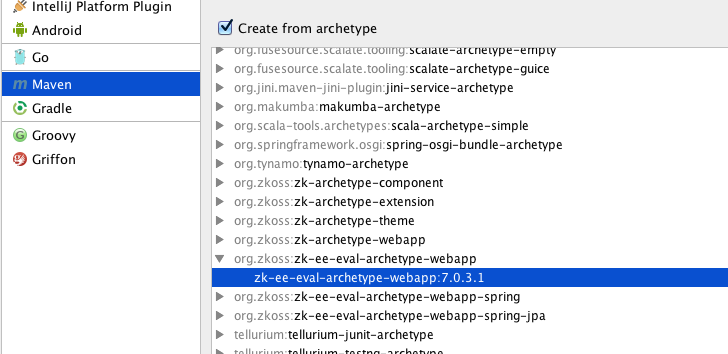
Maven Project Creation
since 0.1.3
You can create new ZK projects easily using the bundled ZK Maven archetypes. This helps you set up a new ZK project with the correct structure and dependencies quickly.
Feedback Menu
since 0.4.0
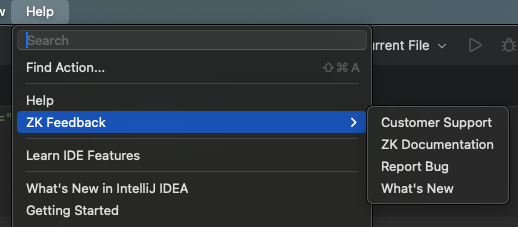
A “ZK Feedback” menu is available under the “Help” menu in IntelliJ IDEA. This provides convenient links to customer support, documentation, and a bug reporting form.