First ZK App with IntelliJ and ZKIdea
ZKIdea is an IntelliJ plugin for ZK application development contributed by Mr. Jumper Chen.
Install ZK IntelliJ Plugin
Install IntelliJ
or visit JETBRAINS Marketplace
Install ZK plugin
-
Start IntelliJ
-
On IntelliJ’s main menu bar, select File > Settings > Plugins.
Or from the welcome screen: select Configure > Plugins -
Type ZK into the search bar, and then install it.
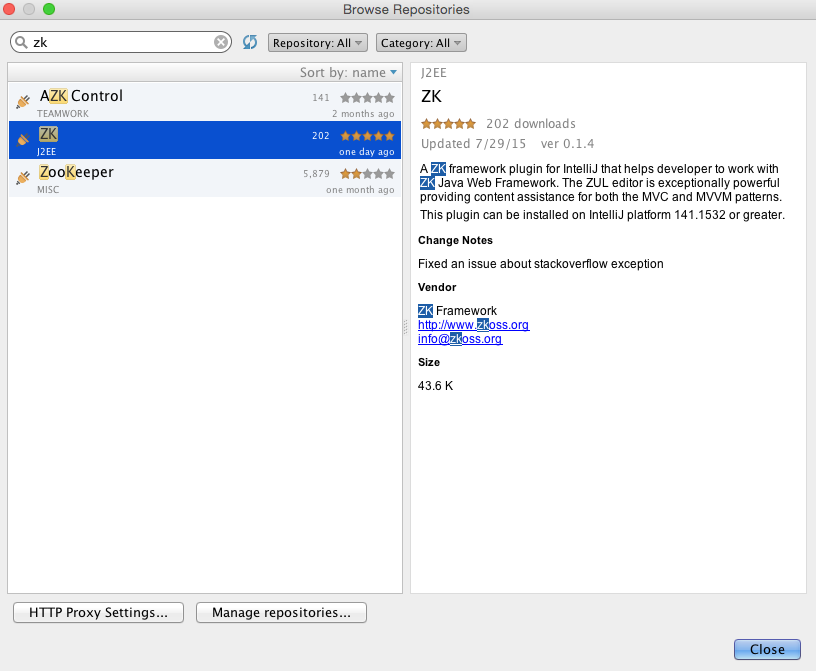
-
After installation, restart IntelliJ when prompted to activate the plugin.
Create a New ZK Project
-
On IntelliJ main menu bar, select File > “New Project” > Maven
-
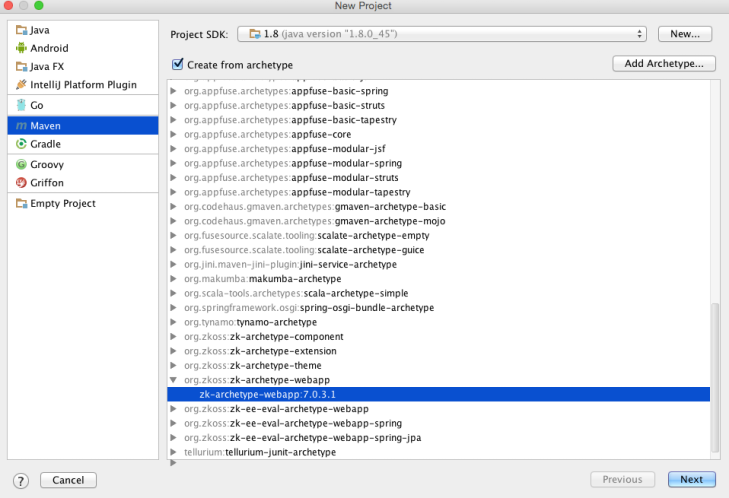
On the New Project wizard, select a “Project SDK”, check “Create from archetype”, scroll to the end of the list, select a ZK archetype, and press “Next” to create a project.
-
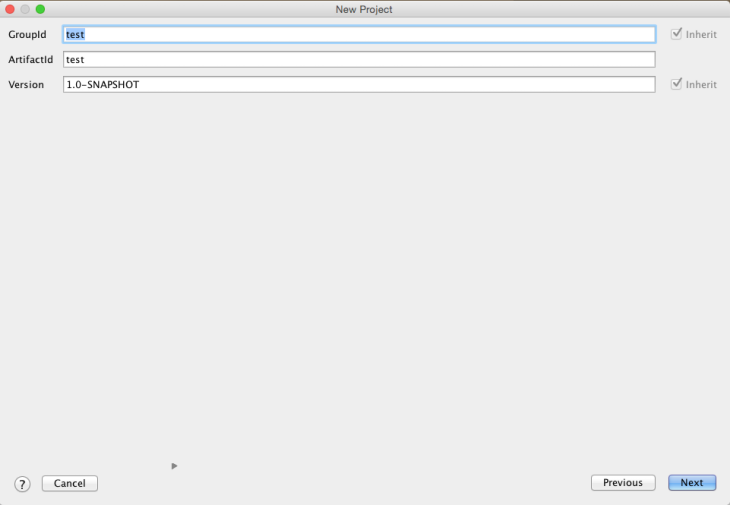
Fill in the information about your project and press “Next”.
-
Check all the information about your project and press “Next”.
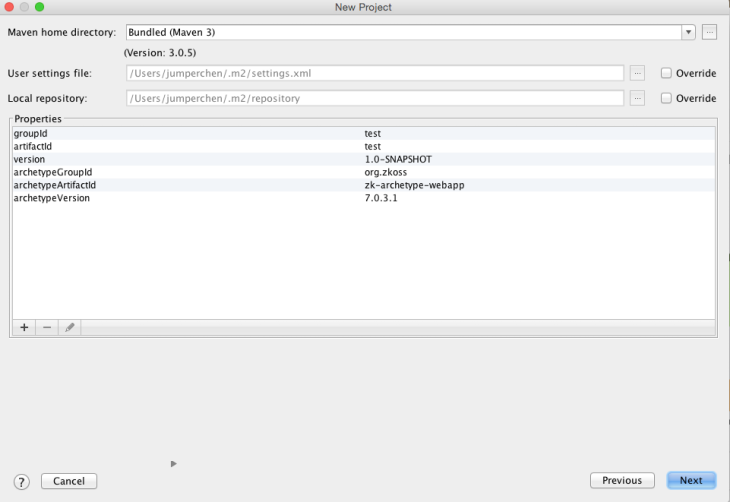
-
Fill in the project location and press “Finish”.
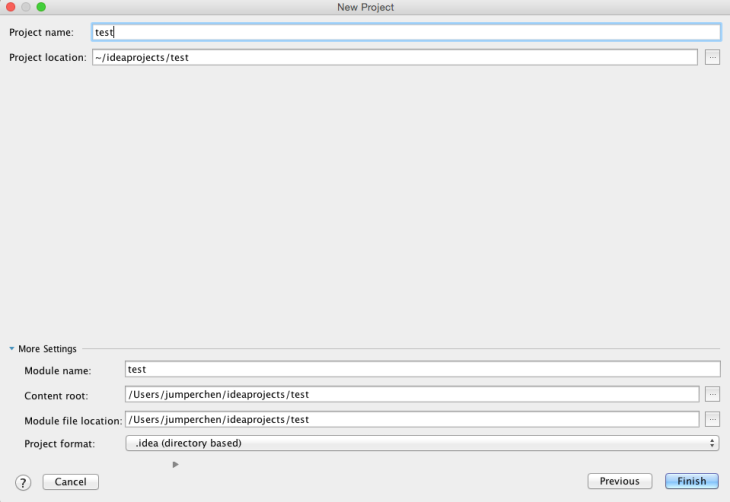
Run the ZK Project
-
On IntelliJ main menu bar, select Run > “Edit Configurations”
-
Press the plus icon “+” to add a maven runtime
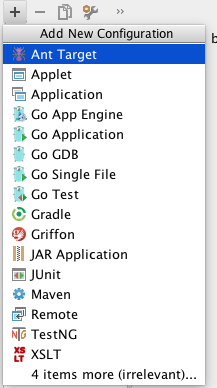
-
Fill in the project information and type “jetty:run” into the “Command Line” field, and then press “Apply” and “OK”
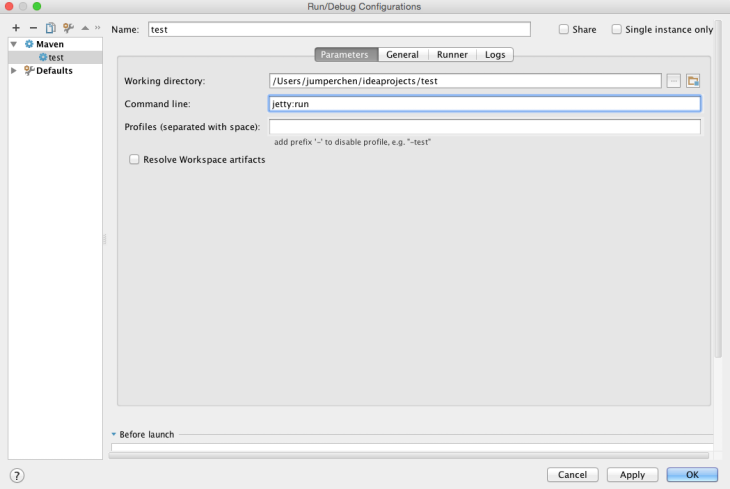
-
Press the green run button to run a jetty server with the project

-
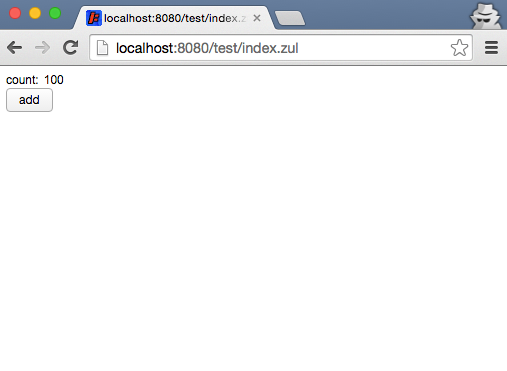
Visit the link “http://localhost:8080/test/index.zul” on your browser