zul-writer 2.0: Letting the AI See the ZUL Page It Just Wrote
 Author: Hawk Chen, Manager, Potix
In March, we introduced zul-writer, an Agent Skill that helps AI coding agents build ZK applications. Instead of generating ZUL from scratch based only on its general knowledge, zul-writer gives the agent ZK-specific instructions and a structured workflow for creating ZUL pages and their Java controllers.
You can describe the UI you want in natural language, or provide a UI mockup, and zul-writer turns that description into a ZK page and the code behind it. It can then validate the generated ZUL and controller, helping developers get from an idea or design to a working ZK page with much less manual coding.
Now, we are taking that workflow one step further. zul-writer 2.0 adds a preview step that renders the generated page in a real browser. The agent can then inspect the result, identify layout or visual issues, and make another pass when needed. In the following sections, we’ll look at how this new feedback loop works and how it helps the agent produce a more accurate result.
Adding Visual Feedback to the Workflow
Consider this line of ZUL:
<label sclass="z-icon-bell"/>
It is well-formed XML. label is a real ZK component. sclass is a real attribute on it. None of zul-writer’s static checks catch anything wrong with it — they report the page clean.
In a browser it renders as an empty box. The icon never appears.

The same icon class works perfectly on a <span>, on a <div>, and through a button’s iconSclass. <label> is the one carrier that fails, because ZK’s .z-label rule sets its own font-family, which outranks the icon font. Nothing about the markup is invalid — the defect only exists once a browser has resolved the CSS cascade.
This is the kind of issue that can only be identified from the rendered page. That is why zul-writer 2.0 adds a preview step to the existing workflow: after generating and validating the page, the agent can render it, inspect the result, and use that feedback to improve its output.
This is a whole category, not one quirk. Static validation reads text; the defects that actually reach users are made by a layout engine:
| Defect | Static validation | A render |
|---|---|---|
| Malformed XML, unknown attribute, ZK 10 incompatibility | catches it | — |
An hflex that visibly did not take |
invisible | visible |
| A label clipped at its right edge | invisible | visible |
| A sidebar that fell below the content | invisible | visible |
| A region collapsed to zero height | invisible | visible |
| A font icon drawn as an empty box | invisible | visible |
| A page wider than the viewport | invisible | visible |
Every row marked invisible only shows up once the page renders.
Step 5: The Agent Now Renders the Page and Reviews Its Own Work
The original zul-writer workflow had four steps, taking the agent from understanding the requirements through generating and validating the page. In 2.0, we add a fifth step: previewing the generated page in a real browser. This completes a feedback loop, allowing the agent to see the result of its own work and refine it when needed.

One command does the render:
uv run ~/.claude/skills/zul-writer/scripts/preview-zul.py --width 1600 src/main/webapp/app-tracker.zul
And this is what comes back — a real run against the showcase project:
STATUS: ok
SCREENSHOT: /path/to/zulwriter-showcase/app-tracker-preview.png
SIZE: 1600x900
DOCROOT: /path/to/src/main/webapp  (rule: WAR webapp)
CLASSPATH: maven (cached), 31 jars + 1 output roots + 1 resource roots
ZK: zk-10.3.0.1-Eval.jar
LAUNCHER: 1.0.3 (cache)
CONTROLLERS: skipped (isolated)
LAYOUT: 1 findings
  - zero-size | hlayout.z-hlayout | 281x0 with 2 children
Nothing here is a mock or an approximation. The script finds your project’s real ZK jars through Maven or Gradle, boots ZK’s own rendering engine against them, serves the page at the URL it would have in production, and drives a headless Chrome or Edge to capture it. It is the same engine that powers the Layout Preview pane in the ZK IntelliJ plugin, packaged as a small command-line helper.
Then the agent opens the PNG and compares it against what you asked for.
What about IntelliJ’s ZUL Preview Feature
ZK IntelliJ IDEA also introduced a preview feature for ZUL pages recently. It provides a live, interactive view directly in the IDE, which is useful when a developer wants to inspect the page while editing it.
So what is different about zul-writer’s preview?
The key difference is who the preview is for. IntelliJ’s preview is designed for the developer to view and interact with the page, while zul-writer’s preview makes the rendered result available to the AI agent. The agent can inspect the page and use what it sees to refine the generated ZUL as part of its workflow.
| IntelliJ Layout Preview | preview-zul.py | |
|---|---|---|
| Output | A panel inside the IDE | A PNG file on disk |
| Who looks at it | You | The agent — and then you |
| Who closes the loop | You look, describe it in words, and paste that back | The agent reads the image and fixes its own markup |
| What it needs | The IDE open, the panel open, you watching | A JDK and a browser |
The two previews therefore serve different purposes. IntelliJ’s preview helps the developer review the page, while preview-zul.py gives the agent visual feedback as part of its workflow. They work alongside each other, and the same agent-side preview can be used whether you’re working in IntelliJ, VS Code, a terminal, or CI.
Layout Defects Are Now Measured, Not Guessed
Screenshots are easy to misread. A model glancing at an image can convince itself that a slightly narrow column is fine, or that a missing block was never asked for.
So after the screenshot, the same browser runs a DOM audit and reports what it measured. Those numbers are facts, and the agent is instructed to act on them before it acts on any impression from the image:
LAYOUT: 3 findings
  - zero-size         | a[label="Settings"]  | 0x0 with text but no box
  - clipped-text      | a[label="Documents"] | text needs 77px, box is 48px
  - viewport-overflow | grid.gp-wide         | page scrollWidth 2005 > viewport 1280
Five rules run:
| Rule | What it means | Typical fix |
|---|---|---|
clipped-text |
Text does not fit the box that clips it | Widen the box, allow wrapping, or shorten the text |
zero-size |
A widget occupies no space at all | A missing height/vflex, or a width: 0 rule |
escapes-parent |
Visible content sticks out of a clipping ancestor | Give the parent room |
viewport-overflow |
The page needs a horizontal scrollbar | Drop the fixed width on the named element |
icon-not-rendered |
A font icon will draw as an empty box | Move the icon class to a carrier that keeps the icon font |
Two details make these usable rather than noisy. First, every finding is traced back to the ZK widget that owns the node, and named with something you can search for in your own file — label#breadcrumbCurrent, or a[label="Settings"] — never a generated ZK uuid. Second, the audit queries the whole document, including what is below the fold, so a finding can legitimately name something the screenshot does not show.
When the audit finds nothing, no LAYOUT: line is printed at all — there is no “0 findings” to read past. So an output with no block is telling you the page was measured and came back clean, which is a different thing from an audit that never ran.
Before and After: 2.0 Rebuilds the Same Mockup Far More Faithfully
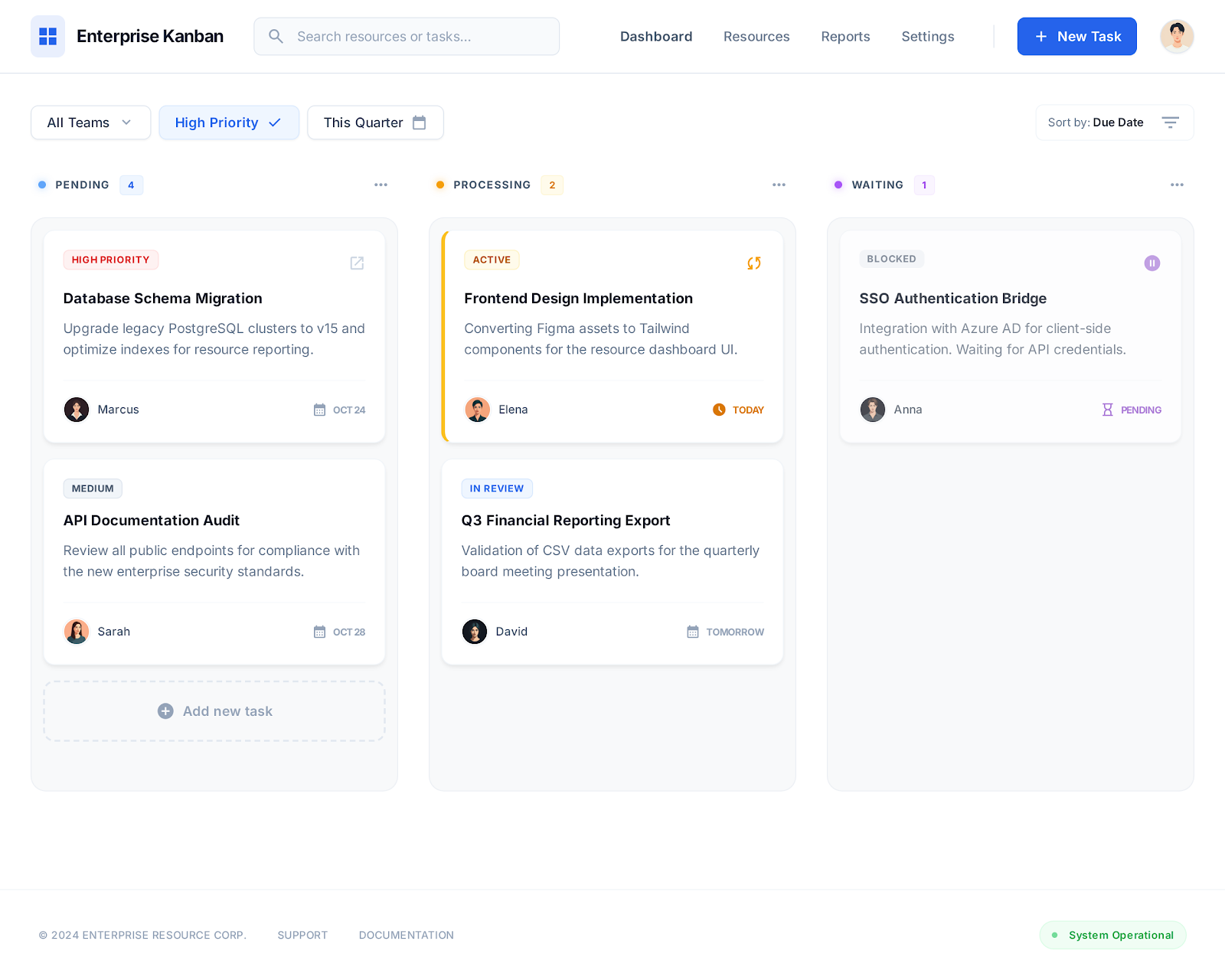
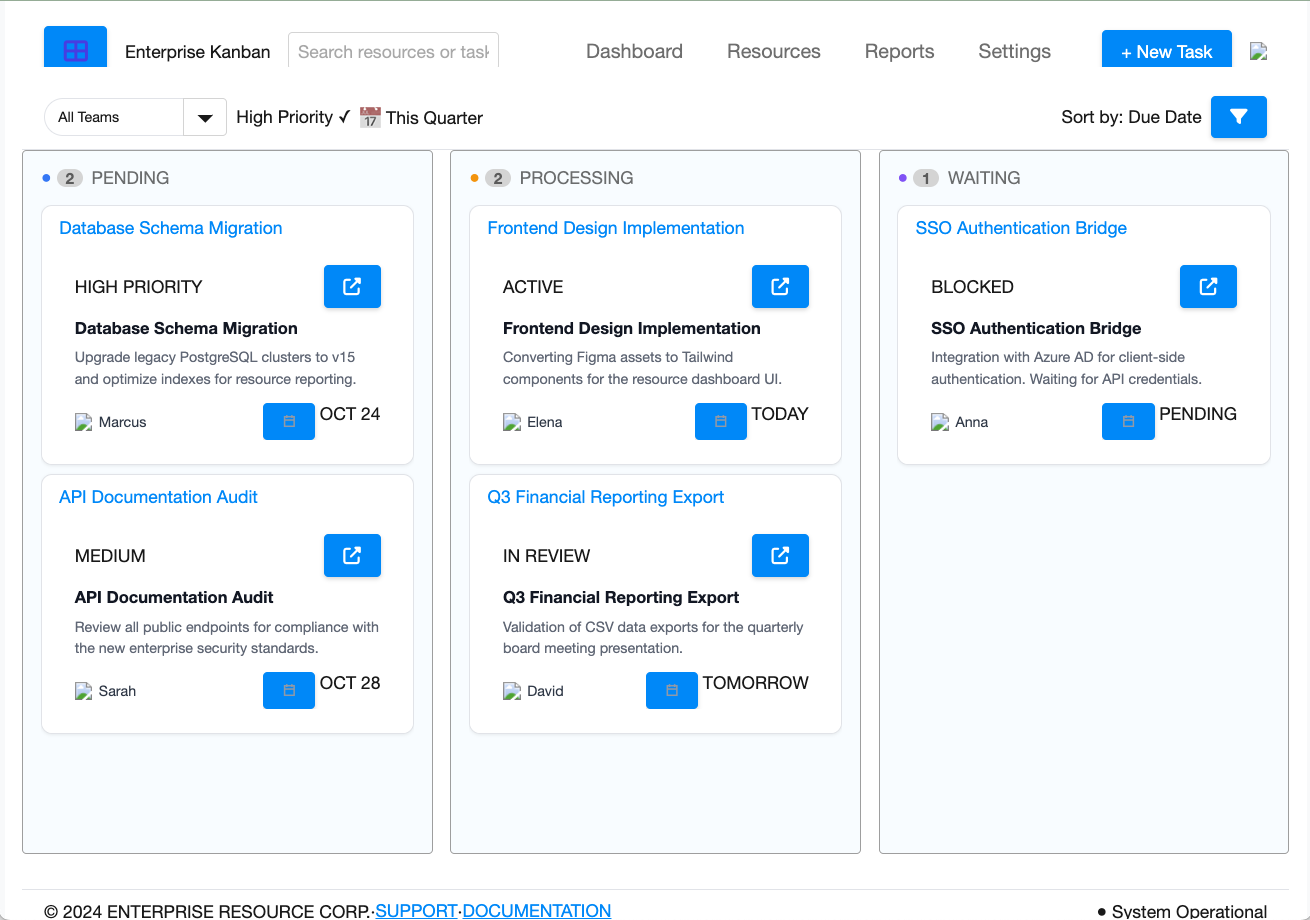
The March article ended with a showcase: mockups generated in Google Stitch, handed to zul-writer, and the ZK pages it produced from them. One of those was an Enterprise Kanban board — so we gave 2.0 the same image and let it run its own five steps. Here are all three, in order.
1. The original mockup, from Google Stitch
2. zul-writer 1.0 — the page in the March article
3. zul-writer 2.0 — the same mockup, rendered by its own Step 5

Be clear about what this comparison is: two runs six months apart, not a controlled experiment. The feedback loop is the largest change between them, but not the only one — 2.0 also moved styling out of style attributes and into classes, and the models these skills run on have improved in that time too.
What is attributable to the loop is specific and checkable. Three of the 1.0 page’s defects are exactly what the new channels measure:
- A broken-image icon on every card. The page asked for an asset it did not get. A missing image now produces a
WARNINGS:entry naming the URL, so the agent is told which file is absent instead of shipping five broken icons it never saw. - The search placeholder cut off mid-word — “Search resources or tas”. That is
clipped-text, reported with the measurement: how many pixels the text needs and how many the box has. - Every card title rendered twice, once as a blue panel header and again as bold text inside the card. No rule measures this one. The agent catches it by looking at the picture — which is the whole point, and something it could not do at all in March.
The 2.0 run took one fix round, and the defect it fixed is worth reporting because the agent had caused it itself. The first render came back with six findings, all the same rule:
LAYOUT: 6 findings
  - icon-not-rendered | span.ekb-search-icon  | ::before glyph U+F002 needs an icon font, but the resolved stack is -apple-system, "Segoe UI", Roboto,…
  - icon-not-rendered | span.ekb-sort-icon    | ::before glyph U+F0B0 needs an icon font, but the resolved stack is -apple-system, "Segoe UI", Roboto,…
  - icon-not-rendered | span.ekb-more         | ::before glyph U+F141 needs an icon font, but the resolved stack is -apple-system, "Segoe UI", Roboto,…
  (…3 more)
One line of the page’s own CSS was the cause:
.ekb-page .z-label, .ekb-page .z-span { font-family: inherit; }
A reasonable-looking rule — make the page’s text use the page’s font — that also reaches every icon span and replaces the icon font with a text font. Same defect as <label sclass="z-icon-bell"/>, arrived at from the other direction. Six icons would have drawn as empty boxes; the page validated clean through all five layers, both before and after the fix.
Deleting .z-span from that selector fixed all six at once. The re-render printed no LAYOUT: block and no WARNINGS: — and that quiet output is the finished page above.
The remaining differences from the mockup are data and decoration, not structure: the mockup’s avatars are photographs and the render uses ZK’s own user icon, and the greys are close rather than identical. The skill is instructed not to spend fix rounds on either.
Both pages this article renders — kanban-board-v2.zul above and app-tracker.zul in the sections that follow — are in the zulwriter-showcase project, so you can run these previews against them yourself.
The Image Shows the Defect; --probe Helps Find the Cause
An empty box where an icon belongs. A colour nobody asked for. A width that is not the one you set. The image proves something is wrong and says nothing about why — and rendering again produces exactly the same image.
To understand the cause, the agent needs to inspect what the browser actually built. With ZK, the initial HTML response does not contain the complete picture. ZK sends a zkmx([...]) bootstrap that merely restates your .zul back to you, while the final DOM, classes, fonts, and dimensions are established in the browser by ZK’s client engine.
So 2.0 adds --probe, which reports matching elements as the browser actually built them:
uv run preview-zul.py page.zul --probe '[class*="z-icon-bell"]'
PROBE: 1 selector, 2 matches
  [class*="z-icon-bell"]  —  2 matches
    - <span id="mSAA1" class="z-icon-bell z-label">
      box 8x18 @ (25,20) | display inline-block
      font-family "Helvetica Neue", Helvetica, Arial, sans-serif
      ::before content "\uf0f3" | ::before font-family "Helvetica Neue", Helvetica, ...
    - <span id="mSAA2" class="z-icon-bell z-span">
      box 14x16 @ (25,39) | display inline-block
      font-family ZK85Icons, FontAwesome
      ::before content "\uf0f3" | ::before font-family ZK85Icons, FontAwesome
(The actual output includes additional information such as position, overflow, colors, and flex values. The glyph is shown as an escaped Unicode value because private-use characters may not be visible in a terminal.)
Read that pair: both elements request the same glyph, and only one has a font that can draw it. That’s the diagnosis, and it isn’t visible in the markup. Before this existed, the same defect was misdiagnosed three different ways in our own evaluation runs — blamed on a missing web-font, on a 404, on ZK’s bundled icon set. A measurement settled in one command what three theories could not.
When you do not yet know what to probe, --dump-dom writes the whole post-mount DOM to a file you can grep.
--run-controllers: Judge the Page Against Real Data, Not a Skeleton
By default the renderer substitutes a no-op composer for every apply= and every viewModel=. No project code runs. That is deliberate — a preview should not execute arbitrary constructors and service calls just because you asked what a page looks like.
The trade-off is that the preview contains only the page skeleton. Here is the AppTracker showcase page rendered in that default mode:

The layout is there, but values supplied by the Composer are missing. This is useful for a safe layout preview, but it is not the same as judging the page with its real content.
Pass --run-controllers when you want the preview to use the project’s actual Composers and ViewModels. The real ZK Binder resolves the bound values, and the placeholder injector stands down:

Same page, same markup, one flag. The output always says which mode you got, because the judging rules invert on it:
| Line | What the image is |
|---|---|
CONTROLLERS: skipped (isolated) |
The default. Dimmed expression text and placeholder rows are correct behaviour, not defects. |
CONTROLLERS: executed |
Every value is real. A blank bound field now is a defect. |
CONTROLLERS: failed → isolated |
Controllers were attempted and failed; the isolated render was served instead, and the cause is named. |
A controller failure does not destroy the preview. The renderer falls back to isolation, keeps the exit code at 0, writes the screenshot, and reports the exception class and failing project class. It also compares the two attempts, so a problem is attributed to controller execution only when it disappears in the isolated render.
Because --run-controllers executes your code, it is opt-in per render and never a default. The skill recommends using it when the controller was written as part of the current session; for existing code that has not been reviewed, the safer isolated preview should be used.
Two Passes: Settle the Layout First, Extract the Data Second
This mode also changed how zul-writer builds a page backed by real data, and the change is worth stealing whether or not you use the skill.
A page whose values come from a ViewModel cannot show you itself until that ViewModel exists and compiles. Until then, column widths and card heights are all being judged against placeholder text that is not the text the page will hold — which is precisely how a page passes review and still comes out wrong the first time it runs for real.
So zul-writer now writes the first version with literal values shaped like the real data: a name of realistic length, a price with its real digits, enough rows to fill the region. Literals render as themselves, so the screenshot is the page you will actually get. Once the layout is settled, it extracts in one pass — every literal moves into the controller, each one replaced by the binding that reads it, and nothing else changes. Then one render with --run-controllers confirms the extraction did not move anything.
What the Preview Still Cannot Tell You
The preview captures the first paint only:
- No interaction. Button clicks, paging, sorting, tree expansion, selection highlighting, a popup opened by an event — none of it exists. Client-side
w:handlers and<zscript>do run. - No theme colours from a jar the project does not depend on.
- No pixel-level judgment. Exact spacing, font rendering and sub-pixel alignment are not what this is for. Chasing a mockup pixel by pixel costs fix rounds and regresses working markup, so the skill forbids it.
- Sample data will differ from the mockup. Compare the shape of the UI, not the values in it.
And a real constraint on the loop itself: at most two fix rounds. If a defect survives both, the agent is instructed to stop and tell you what it is and what it tried — rather than editing on one guess and then editing again on the next.
Also in 2.0: Single-Step Entry, Class-Based Styling, CI Output
Beyond the preview, three smaller changes are worth knowing:
- The five steps are entry points, not a chain. You can now invoke a single step. “Preview
foo.zul” runs Step 5 and nothing else — no interview about MVC versus MVVM, no unrequested improvements to markup you were happy with. “Is this ZUL valid?” runs Step 3. “Write the ViewModel for this page” runs Step 4. - Styling goes through classes, not
styleattributes. Generated pages now put their CSS in one<style>block and attach it withsclass. An inlinestyleis rendered onto the widget’s own element, where it outranks every stylesheet — the page stops being themeable, and no:hover,:focusor@mediarule can ever reach it. A fifth validator layer lists any that slipped through. The one honest exception is a value that only exists at runtime, such as a colour that comes from data. - A JSON sidecar for CI.
--report jsonwrites the whole run as a single JSON object, and--fail-on-layoutturns any layout finding into a non-zero exit — so a build can gate on rendered geometry, not just on schema validity.
Install or Upgrade
Installation is unchanged:
npx skills add zkoss-demo/agent-skill
Step 5 has two extra requirements, both of which most developers already have:
- A JDK 17 or later — to run the render helper.
- Google Chrome or Microsoft Edge — ZK builds its DOM in client-side JavaScript, so a real browser is mandatory.
On first use the skill downloads the render helper (about 500 KB), verifies it against a pinned SHA-256, and caches it under ~/.cache/zul-writer/. Later runs need no network. If any prerequisite is missing, the script exits cleanly with a PREVIEW_SKIPPED: line and a NEXT: line telling you exactly what would enable it — the skill is instructed to report that in one line and finish the task, never to invent a screenshot it did not see.
Summary
zul-writer helps AI coding agents build ZK applications from natural-language descriptions or UI mockups, using ZK-specific knowledge to generate and validate ZUL pages and Java controllers.
zul-writer 2.0 builds on this workflow by adding a visual feedback loop. The agent can now render the page in a real browser, inspect the result, identify layout and visual issues, and refine its output.
Key improvements include:
- The agent sees its own output — a real render through ZK’s own engine, in a real browser, against your project’s real jars.
- Layout defects are measured, not guessed — five DOM rules report clipped text, collapsed regions, overflow and broken icons, each traced back to a locator you can find in your own ZUL.
- The cause is reachable, not just the symptom —
--probereads the rendered DOM, which is the only place a ZK page exists as markup. - Real data when you want it —
--run-controllersruns your Composers and ViewModels, and fails soft when they break. - Each step stands alone — validate, generate a controller, or just take a screenshot, without running the whole workflow.
If you use an AI coding agent to build ZK applications, give zul-writer a try. Start with a UI mockup or a page you need to build, and let the skill take you through the workflow. With 2.0, the agent can now not only generate the page, but also see the rendered result and refine it before handing the work back to you.
Resources
- Agent Skills for ZK Development — the reference page
- Accelerate ZK Development with the AI Agent Skill: zul-writer — the introduction to zul-writer
- zkoss-demo/agent-skill — source and marketplace index
- zulwriter-showcase — the runnable Maven project holding every page in this article
- ZK Forum — start a discussion
- GitHub Issues — report a bug or request a feature
We would especially like to hear about pages where the preview got it wrong: a defect it missed, or a correct page it read as broken. Those are the two failure modes that matter, and real projects find them faster than we can.